
Summary
This article explains how to troubleshoot situations where your GibbsCAM license displays an unexpected or incorrect expiration date.
In most cases, an incorrect expiration date is caused by an outdated license file, an incomplete license update, or the use of a different license than expected.
Table of Contents
Symptoms
You may experience one or more of the following:
The license expiration date is earlier than expected.
Recently renewed maintenance is not reflected.
Newly purchased modules are unavailable.
Different computers display different expiration dates.
The license appears to have expired even though your maintenance is current.
Before You Begin
Verify the following:
You are using the correct GibbsCAM installation.
If using a hardware key license, the correct USB hardware key is connected.
If using a Network License (NLO), you are connected to the correct license server.
You have your Product Code available if requested.
Procedure
Step 1 – Verify the License Information
Open the License (.lic) File within a text editor and review:
Product Code
Host ID
Licensed modules
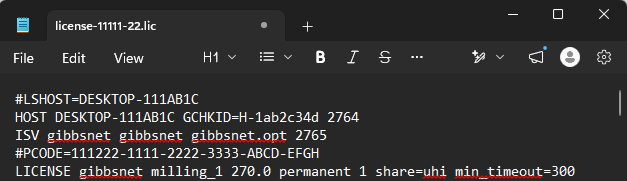
Compare the information with your purchase confirmation or maintenance renewal documentation.
Step 2 – Update Your License
If you recently renewed maintenance or purchased additional options:
See: How to Update Your GibbsCAM License
Hardware-Locked:
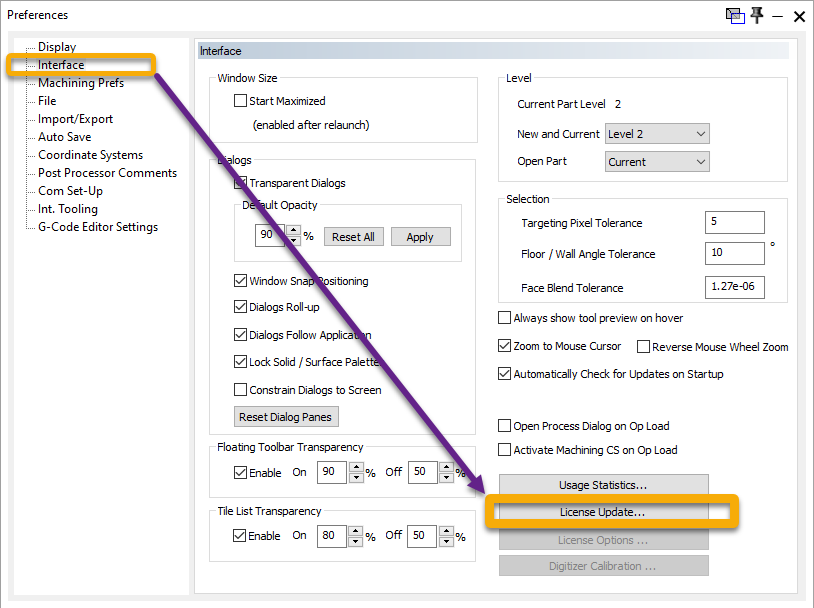
Open File > Preferences.
Select the Interface tab.
Click License Update.
Run the Registration Tool.
Complete the update process.
Restart GibbsCAM.
Network License (NLO)
On your server, run the Registration Tool.
Complete the update process.
Restart GibbsCAM on the workstation.
Many expiration date issues are resolved by downloading the latest license from the GibbsCAM Activation Service.
Step 3 – Verify You Are Using the Correct License
If multiple licenses exist within your organization:
Hardware-Locked License
Verify the correct hardware key is connected.
Confirm that the intended .lic file is installed.
Network License (NLO)
Verify that the client is connected to the correct license server.
Confirm that the server has been updated with the latest license file.
Step 4 – Confirm Your Renewal Has Been Processed
If you renewed maintenance recently:
Allow sufficient time for the renewal to be processed.
If instructed by CAMCO, run License Update again after processing has been completed.
If you are unsure whether your renewal has been processed, contact CAMCO Customer Service.
Step 5 – Restart GibbsCAM
After updating the license:
Close GibbsCAM.
Restart the application.
Verify the expiration date again.
Expected Result
The license expiration date reflects your current maintenance status and recently purchased license updates.
Troubleshooting
Problem: Expiration Date Has Not Changed
Possible Causes
License Update was not completed.
The updated license has not yet been issued.
The wrong license file is installed.
Resolution
Run License Update again and verify that the latest license file has been installed.
Problem: Different Computers Show Different Expiration Dates
Possible Causes
Different hardware keys.
Different network license servers.
Different license files.
Resolution
Verify that all systems are using the same license source and compare the active license information.
Problem: Network License Users See an Older Expiration Date
Possible Causes
The NLO server license has not been updated.
Clients are connected to an outdated server.
Cached license information.
Resolution
Update the Network License server, restart the RLM service if required, and verify that client workstations reconnect to the updated server.
Problem: Maintenance Was Renewed Today
Possible Causes
Renewal has not yet been processed.
Updated license has not yet been generated.
Resolution
Wait for confirmation that the renewal has been processed, then perform a License Update.
Best Practices
Run License Update immediately after renewing maintenance or purchasing additional modules.
Restart GibbsCAM after updating your license.
Verify the expiration date before beginning production work.
For Network License environments, update the server license before updating client workstations.
Keep your Product Code and license documentation in a secure location.
Related Articles
- Online Registration Guide (Hardware-Locked Licenses)
- Offline Registration Guide (Hardware-Locked Licenses)
- What Options are on my GibbsCAM License?
- My License Is Missing Options
- Network License (NLO) Server Setup
- How to Update Your GibbsCAM License
Keywords
License Expiration, Wrong Expiration Date, Maintenance Renewal, License Update, Expired License, Product Code, RLM, Hardware-Locked License, Network License, Maintenance, License Renewal, License File