
Summary
This article explains how to register a GibbsCAM hardware-locked license on a computer that does not have Internet access.
Offline Registration uses the Registration Tool to generate a registration request file. The request is then transferred to a computer with Internet or e-mail access and sent to the GibbsCAM Activation Service. After the license file is returned, it is installed into GibbsCAM to complete the activation.
When to Use Offline Registration
Use Offline Registration when:
The computer running GibbsCAM has no Internet access.
Internet Registration cannot reach the Gibbs Activation Service.
Company security policies prohibit Internet access.
The workstation is isolated from external networks.
If the computer has Internet access, use Online Registration instead.
Before You Begin
Before starting, verify that:
GibbsCAM has been installed successfully.
You have your Product Code.
The hardware key is connected to the computer.
The hardware key drivers are installed.
You have access to:
A USB flash drive or other removable media.
Another computer with Internet or e-mail access.
Procedure
Step 1 – Launch the Registration Tool
Connect the GibbsCAM hardware key to the workstation.
Launch GibbsCAM.
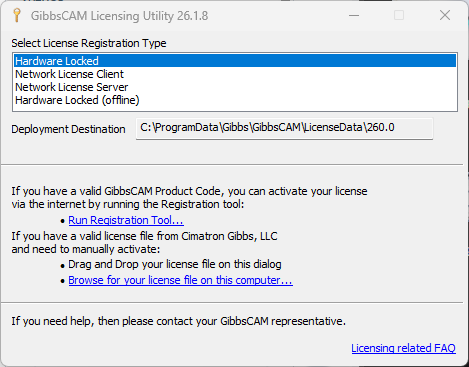
If no license is found, the License Installation dialog appears.
Alternatively, launch the Registration Tool directly from:
Start Menu → GibbsCAM → Registration Tool
or run:
RegistrationTool.exe
Select: Run Registration Tool...
Step 2 – Enter Your Product Code
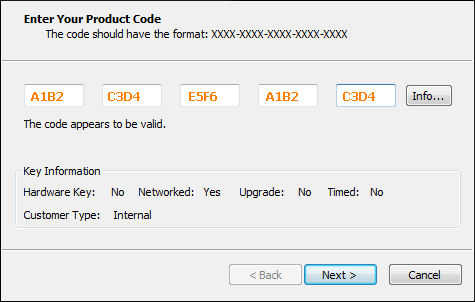
Enter the Product Code provided by CAMCO.
Select Next.
Step 3 – Enter Customer Information
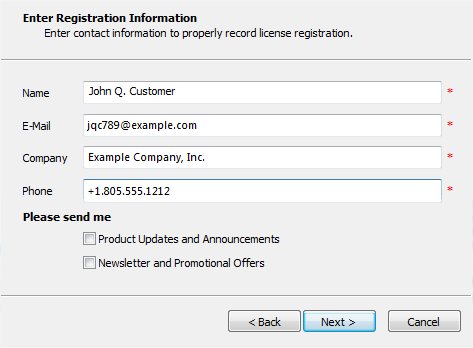
Complete the requested customer information.
Select Next.
Step 4 – Save the Registration Request File
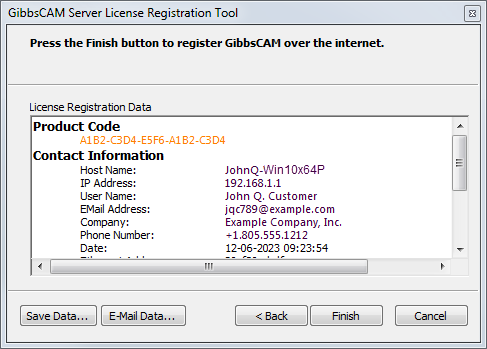
Select Save Data or Finish.
When prompted, save the “License.glc” file to a known location or to removable media such as a USB flash drive.
Step 5 – Submit the Registration Request
Move the registration request file to a computer that has Internet or e-mail access.
You can submit the request by sending the “License.glc” file to support@camco-ne.com for direct processing.
Step 6 – Receive the License File
After the registration request has been processed, you will receive an email with the RLM license file with the .lic extension.
Save the license file to removable media.
Transfer it back to the offline GibbsCAM computer.
Step 7 – Install the License File
Start GibbsCAM.
The License Installation dialog appears.
Install the license using one of the following methods:
Drag and drop the .lic file onto the dialog.
Select Browse for your license file on this computer... and locate the file.
After the license file is successfully installed, a confirmation message is displayed showing “License Successfully Deployed”.
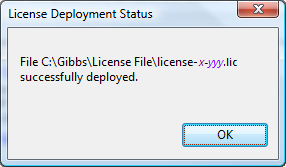
Click “OK”
The software should now start normally using the installed license.
Verify Registration
After GibbsCAM starts:
Verify that no licensing errors are displayed.
Confirm that the correct licensed modules are available.
Expected Result
The offline registration request has been processed successfully, the RLM license file has been installed, and GibbsCAM starts normally with the licensed options enabled.
Related Videos
Troubleshooting
License Not Found
Possible Causes
Hardware key not connected.
Sentinel drivers not installed.
Hardware key not recognized by Windows.
Resolution
Verify the hardware key is connected.
Reinstall Sentinel drivers.
Test another USB port.
Problem: License File Will Not Install
Possible Causes
Incorrect license file
Corrupted file transfer
File was modified
Resolution
Verify that the license file has the .lic extension and was generated for the correct workstation and hardware key.
Problem: Hardware Key Not Detected
Possible Causes
Sentinel driver not installed
Faulty USB connection
Hardware key not connected
Resolution
Reconnect the hardware key, try another USB port, and verify that the Sentinel drivers are installed.
Registration File Rejected or License File Not Accepted
Possible Causes
Corrupted request file.
Incorrect registration procedure.
License already activated with another hardware key.
Resolution
Generate a new request file.
Verify the correct hardware key is connected.
Contact CAMCO Support if the issue persists.
Imported License Contains No Options
Possible Causes:
Incorrect license generated.
Registration process incomplete.
Resolution:
Verify hardware key serial number.
Re-run the registration process.
Contact CAMCO Support.
Best Practices
Keep a backup of the returned .lic file.
Store the Product Code in a secure location.
Label removable media used during the registration process.
Do not modify the registration request or license files.
Retain a copy of the registration e-mail for future reference.
Related Articles
- Online Registration Guide (Hardware-Locked Licenses)
- Installing Hardware Key Drivers
- How to Update Your GibbsCAM License
- Using the Activation Check Utility
- Error: No Hardware Key Detected
Keywords
Offline Registration, Offline License, Hardware-Locked License, Hardware Key, Registration Tool, RegistrationTool.exe, RLM, License File, License Installation, Product Code, Activation, Sentinel Key