
Summary
This article explains how to update your existing GibbsCAM license after purchasing additional modules, options, or maintenance.
The Registration Tool connects to the GibbsCAM Activation Service and retrieves an updated license file containing your updated license information. This process updates your current license—you do not need to reinstall GibbsCAM.
Table of Contents
- Before You Begin
- Network License (NLO)
- Hardware Locked
- Related Videos
- Troubleshooting
- Best Practices
- Related Articles
When to Use This Article
Use this procedure if you have:
Purchased additional GibbsCAM modules.
Renewed your software maintenance.
Received an updated Product Code or license entitlement.
Been instructed by CAMCO Technical Support to refresh your license.
Note: This procedure updates an existing license. If you are installing GibbsCAM for the first time, refer to the Online Registration Guide or Offline Registration Guide instead.
Before You Begin
Verify the following before updating your license:
GibbsCAM is installed.
Your existing license is functioning.
The computer has an Internet connection.
If using a hardware key license, the hardware key is connected.
You have your Product Code available, if requested.
Network License (NLO)
On your server computer open the Registration Tool.
Start Menu → Registration ToolRun the Registration Tool.
See:
Network License (NLO) Server SetupComplete the update process and restart the RLM service.
Verify the new Options are added on the Reprise License Server Administration page.
See:
What Options are on my GibbsCAM License?Restart GibbsCAM.
Check out the required options via the License Check Out window.
Hardware Locked
Open the Registration Tool.
Either:
Start Menu → Registration Tool
Or
File > Preferences → Select the Interface tab → Click License Update.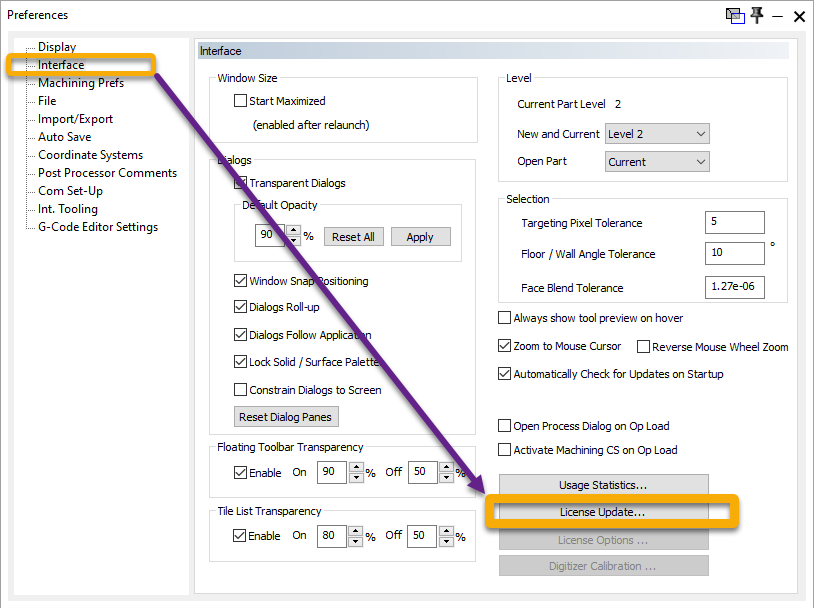
Run the Registration Tool.
See:
Online Registration Guide (Hardware-Locked Licenses)
Offline Registration Guide (Hardware-Locked Licenses)Complete the update process.
Restart GibbsCAM after the update finishes.
Verify the New Options
After restarting GibbsCAM:
Open the License Information window.
Review the list of licensed modules and options.
Confirm that the newly purchased features are listed and available.
If the expected options do not appear, see My License Is Missing Options.
Expected Result
Your current license has been updated and the newly purchased GibbsCAM modules or options are available without reinstalling the software.
Related Videos
Troubleshooting
Problem: New Options Do Not Appear
Possible Causes
License update did not complete successfully.
The updated license has not yet been generated.
The wrong license file is installed.
Resolution
Run the Registration Tool again and restart GibbsCAM.
If the options are still missing, contact CAMCO Support.
Problem: Registration Tool Cannot Connect
Possible Causes
No Internet connection.
Firewall or proxy restrictions.
Activation Service temporarily unavailable.
Resolution
Verify Internet connectivity.
If the workstation cannot access the Activation Service, use the Offline Registration Guide or contact CAMCO Support.
Problem: Network License Users Do Not See New Features
Possible Causes
The network license server has not been updated.
The updated license file has not been installed on the server.
Users are connected to the wrong license server.
Resolution
Update the network license on the server and restart the RLM service if required. Confirm that users are connected to the correct license server.
Problem: Prompted for a Product Code
Some license updates require verification of your Product Code.
Enter the Product Code supplied with your GibbsCAM order or provided by CAMCO.
Best Practices
Perform a License Update immediately after purchasing new modules.
Restart GibbsCAM after updating your license.
Verify the new options before beginning production work.
Keep your Product Code and license information in a secure location.
For network environments, schedule license updates during maintenance windows to minimize user disruption.
Related Articles
- Online Registration Guide (Hardware-Locked Licenses)
- Offline Registration Guide (Hardware-Locked Licenses)
- What Options are on my GibbsCAM License?
- My License Is Missing Options
- Network License (NLO) Server Setup
Keywords
License UpdateAdd License Options, Update License, New License Features, Additional Modules, Product Code, Registration Tool, RLM, Hardware-Locked License, Network License, License Activation, Maintenance Renewal