
Summary
This article provides step-by-step troubleshooting for situations where GibbsCAM cannot communicate with the GibbsCAM Activation Service during license registration or license updates.
Connection failures are typically caused by Internet connectivity problems, firewall restrictions, proxy servers, antivirus software, or corporate network security policies.
Table of Contents
Symptoms
You may experience one or more of the following:
The Registration Tool cannot connect to the activation server.
License Update fails.
Online Registration does not complete.
An activation timeout or connection error is displayed.
GibbsCAM reports that it cannot contact the activation service.
Registration succeeds on another computer but not on the current workstation.
Before You Begin
Before troubleshooting:
Verify that your Internet connection is working.
Ensure GibbsCAM is installed correctly.
Have your Product Code available.
Confirm that you are using the latest supported version of GibbsCAM.
Procedure
Step 1 – Run the Activation Check Utility
Before making changes to your computer, run the ActivationCheck.exe utility.
The utility verifies whether your workstation can communicate with the GibbsCAM Activation Service.
If the test succeeds, proceed to Step 7.
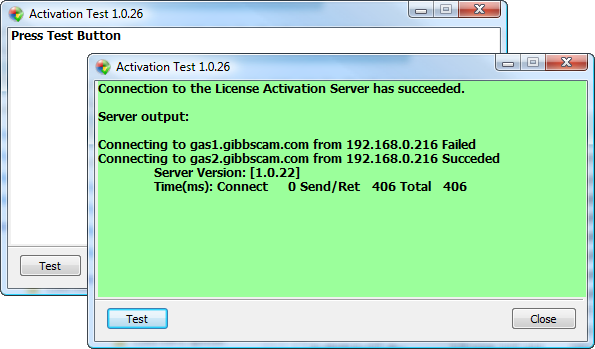
If the test fails, continue with the remaining troubleshooting steps.
Step 2 – Verify Internet Connectivity
Open a web browser and confirm that you can access external websites.
If Internet access is unavailable:
Restore the network connection.
Verify Wi-Fi or Ethernet connectivity.
Contact your IT department if necessary.
Step 3 – Check Firewall Settings
Windows Firewall or third-party security software may block communication with the activation service.
Verify that:
GibbsCAM licensing utilities are allowed through the firewall.
Outbound HTTPS traffic is permitted.
No endpoint security software is preventing the connection.
If appropriate, temporarily disable antivirus or firewall software to test the connection. Re-enable all security software immediately after testing.
Step 4 – Verify Proxy Server Configuration
If your organization uses a proxy server:
Confirm that HTTPS traffic is permitted.
Verify that the proxy allows connections to external licensing services.
Ensure proxy authentication requirements are satisfied.
If you are unsure of your proxy configuration, contact your IT department.
Step 5 – Verify DNS Resolution
Incorrect or restricted DNS settings may prevent your computer from locating the activation servers.
To isolate DNS-related issues:
Restart the computer.
Restart your network connection.
Test the registration process from a different network if available.
Step 6 – Test on Another Network
If possible:
Connect the computer to another trusted Internet connection (for example, a mobile hotspot).
Run ActivationCheck.exe again.
Retry the registration.
If registration succeeds on another network, the issue is likely related to your organization's firewall, proxy, or network security policies.
Step 7 – Verify Your Registration Information
If the Activation Check utility reports a successful connection but registration still fails:
Verify:
Product Code
Customer information
License type
Correct hardware key (if applicable)
Then retry the registration.
Step 8 – Use an Alternative Registration Method
If online registration is still unavailable, use one of the following methods:
E-Mail Registration
Offline Registration
These methods allow the registration request to be processed without a direct connection to the activation service.
Expected Result
The workstation successfully communicates with the GibbsCAM Activation Service and completes the registration or license update.
Troubleshooting
Problem: Activation Check Fails
Possible Causes
Firewall restrictions
Proxy configuration
No Internet connection
Corporate security policies
Resolution
Work through Steps 2–6 above. If the issue persists, consult your IT department.
Problem: Activation Check Succeeds but Registration Fails
Possible Causes
Incorrect Product Code
Invalid registration information
Outdated or incorrect license file
Temporary activation service issue
Resolution
Verify your registration information and retry the operation. If the problem continues, contact CAMCO Support.
Problem: Registration Works on Another Computer
Possible Causes
Local firewall settings
Endpoint security software
Proxy configuration
Local Windows networking issue
Resolution
Compare the working and non-working systems, paying particular attention to firewall, antivirus, and proxy settings.
Problem: Corporate Network Blocks Registration
Possible Causes
Restricted outbound Internet access
SSL inspection
Proxy authentication
Security policy restrictions
Resolution
Provide your IT department with the details of the activation issue and use the Offline Registration Guide if network changes cannot be made.
Information to Collect Before Contacting CAMCO Support
If the issue persists, gather the following information before contacting CAMCO Support:
GibbsCAM version
Windows version
Product Code
License type (Hardware-Locked or Network License)
Screenshot of the Registration Tool error
Screenshot of the Activation Check results
Description of the network environment (home, office, VPN, etc.)
Whether the issue occurs on multiple computers
Providing this information can significantly reduce troubleshooting time.
Best Practices
Run the Activation Check utility before reinstalling GibbsCAM.
Keep Windows and network drivers up to date.
Verify Internet connectivity before attempting registration.
Coordinate with your IT department for firewall or proxy changes.
Keep a copy of your Product Code and registration information in a secure location.
Related Articles
- Online Registration Guide (Hardware-Locked Licenses)
- Offline Registration Guide (Hardware-Locked Licenses)
- Network License (NLO) Server Setup
- How to Update Your GibbsCAM License
- My License Is Missing Options
- Using the Activation Check Utility
Keywords
Unable to Connect, Activation Server, GibbsCAM Activation Service, ActivationCheck.exe, Registration Tool, License Update, Online Registration, Connection Failed, Firewall, Proxy Server, DNS, HTTPS, Internet Connection, License Activation, Licensing Troubleshooting