
Summary
The GibbsCAM Network License (NLO) Server uses Reprise License Manager (RLM) to provide real-time visibility into license usage. Administrators can track which users are consuming licenses, which features are in use, and how many licenses are currently available.
This article explains how to monitor license usage using the RLM Web Administration interface and related tools.
Table of Contents
- Overview
- Accessing the RLM Web Interface
- Viewing Active License Usage
- Understanding License Usage Data
- Monitoring License Availability
- Checking License Logs
- Optional: Command Line Monitoring
- Tracking Roaming Licenses
- Troubleshooting
- Best Practices
- Related Articles
Overview
RLM provides a built-in web-based administration interface that allows license administrators to monitor real-time usage of GibbsCAM licenses.
From this interface, administrators can view:
Active license users
License checkout duration
Hostnames of connected machines
Feature usage (e.g., Mill, Lathe, 5-Axis)
Available vs. used licenses
Accessing the RLM Web Interface
Open a web browser on the license server or a workstation with network access.
Navigate to the RLM administration page:
http://localhost:5054
If accessing remotely, replace localhost with the server hostname or IP address.
Viewing Active License Usage
Once logged into the RLM Web Interface:
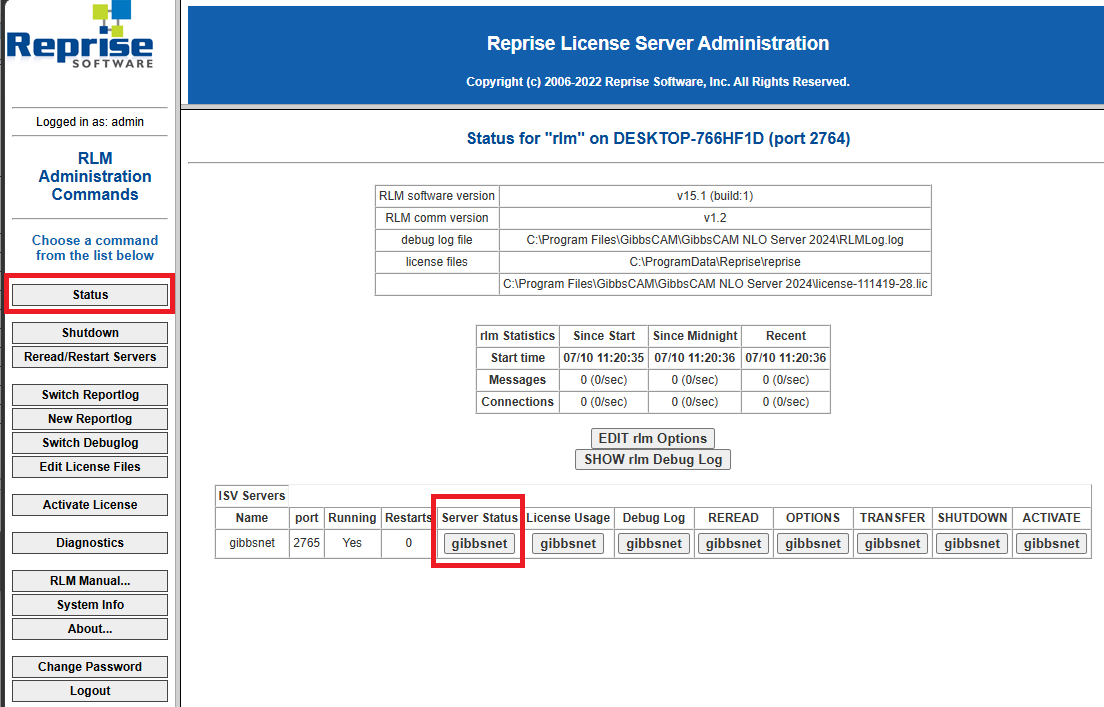
Click the Status button on the left menu.
Under Server status click the Gibbsnet button.
Locate the License Pool Status chart.
This chart will display:
Name of the licensed option
Count of how many total seats of each option
How many seats are currently In Use
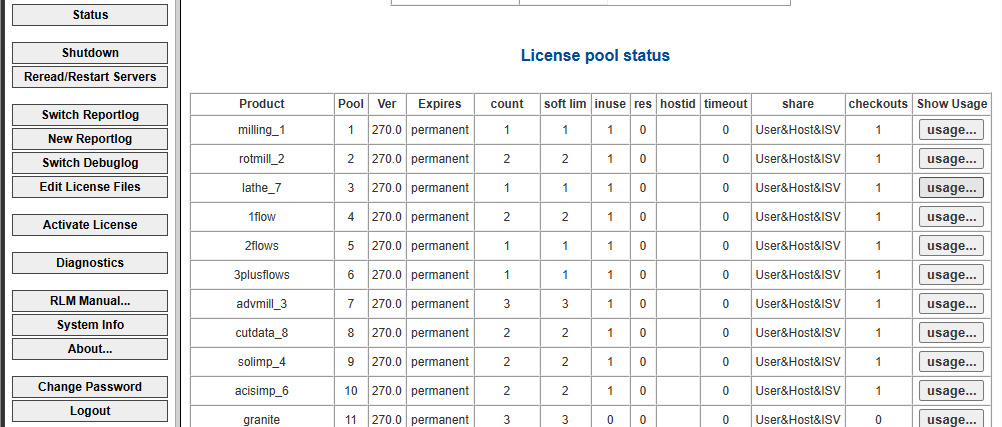
Clicking on the Usage button to the right will display:
Username
Hostname
Checkout time
License expiration (if roaming or timed policies apply)
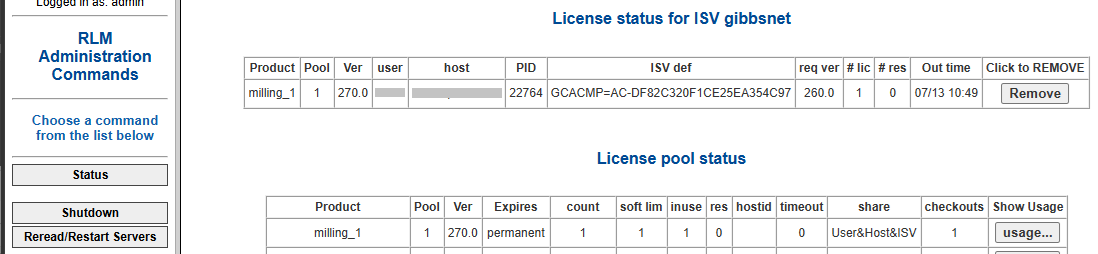
Note: The Remove button will remove the license from the user and kick them out of GIbbsCAM, and potentially lose any unsaved work.
Understanding License Usage Data
The usage table provides the following key information:
Monitoring License Availability
On the same interface, administrators can also view:
Total number of licenses
Number currently in use
Number available
This helps identify:
Peak usage periods
License shortages
Unused or idle licenses
Checking License Logs
RLM also provides log output that can be used for historical analysis.
To review logs:
Open the RLM Web Interface
Click the Status button on the left menu.
The two log files are located by:
Click the SHOW rlm Debug Log
and
Under Dbug Log click the Gibbsnet button.
These files are also located on the server in:
C:\Program Files\GibbsCAM\GibbsCAM NLO Server 2024
- gibbsnet.dlog
- RLMLog.log
Review events such as:
License checkout
License return
Denied license requests
Server startup/shutdown events
Optional: Command Line Monitoring
Advanced administrators may also use network monitoring tools or RLM command-line utilities (if installed) to query license usage.
However, the RLM Web Interface is the recommended method for most environments.
Tracking Roaming Licenses
Roaming licenses will also appear in the usage list.
They are typically marked as:
Checked out user
Roaming status (if displayed by version)
Expiration date or duration remaining
Roaming licenses remain unavailable until:
They are manually returned, or
The roaming period expires
Troubleshooting
Problem: No Users Show in License Usage
Possible Causes
No active users currently checked out licenses
ISV server is not running
Web interface is not connected to the correct server instance
Resolution
Verify the GibbsRLMServer service is running and that users are actively launching GibbsCAM.
Problem: User Appears Stuck Using a License
Possible Causes
Workstation disconnected unexpectedly
Network interruption during session
Resolution
Wait for RLM timeout policies or restart the license server if appropriate. Contact the user to close GibbsCAM properly.
Problem: License Count Does Not Match Expected Usage
Possible Causes
Reserved licenses configured in options file
Roaming licenses in use
Multiple ISV features consuming different license types
Resolution
Check the RLM status page and review options file configuration.
Best Practices
Regularly review license usage during peak hours
Identify heavy users for capacity planning
Monitor for idle or orphaned sessions
Use groups and reservations to control allocation
Review logs weekly for denied license requests
Expected Result
Administrators can clearly see real-time GibbsCAM license usage, helping ensure efficient allocation of network licenses and proactive capacity planning.
Related Articles
- How to Configure User Groups in RLM
- How to Reserve GibbsCAM Licenses for Specific Users
- How to Use Roaming Licenses
- Network License (NLO) Server Setup
- How to Change the NLO Server Ports
- RLM Options File Reference NLO
Keywords
RLM, License Usage, Network License, NLO, GibbsCAM, ISV Server, License Checkout, Active Users, License Monitoring, Roaming License, RLM Web Interface, 5054