
Summary
The GibbsCAM Network License (NLO) Server uses Reprise License Manager (RLM) to provide floating licenses to client workstations. In some environments, your IT department may require the default ports to be changed to comply with firewall policies or resolve conflicts with other applications.
This article explains the purpose of each RLM port, how to modify the server configuration, and what changes are required on client workstations.
Table of Contents
- Before You Begin
- Change the RLM Server Port
- Configure a Static ISV Port (Optional)
- Change the Web Administration Port
- Update Client Workstations
- Verify the Configuration
- Firewall Considerations
- Troubleshooting
- Best Practices
- Related Articles
Overview
A GibbsCAM Network License Server uses three different TCP ports.
The RLM Server Port is used by client workstations to locate the license server.
After the client connects, license requests are handled through the GibbsCAM ISV port. By default, this port is dynamically assigned when the server starts, but it can be configured as a fixed port if required by your organization's firewall policies. The embedded RLM Web Administration interface uses port 5054 by default and can also be configured to use a different port if necessary.
Before You Begin
Before changing any ports:
Schedule maintenance during non-business hours.
Notify users that the license server will be restarted.
Record the current configuration.
Verify the desired port numbers with your IT department.
Ensure the new ports are available and not already in use.
Change the RLM Server Port
The RLM Server Port is defined on the HOST line of the GibbsCAM license file.
To change the server port:
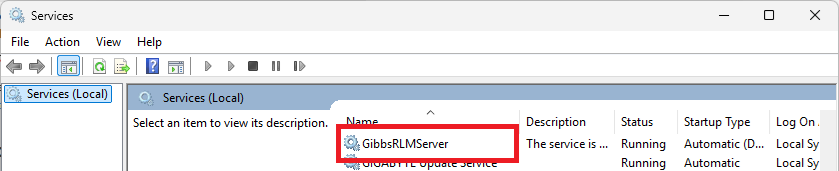
Stop the GibbsRLMServer service.
Open the server license (.lic) file using a text editor.
Locate the HOST line.
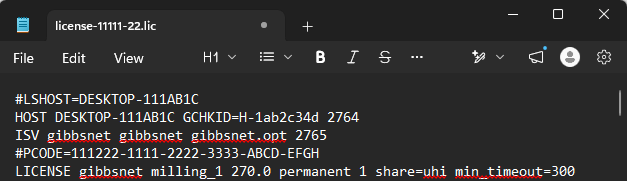
Replace the existing port number with the new TCP port.
Save the license file.
Restart the GibbsRLMServer service.
Note: All GibbsCAM client workstations must be updated to use the new server port before they can reconnect.
Configure a Static ISV Port (Optional)
By default, the GibbsCAM ISV server selects an available TCP port each time the service starts.
In environments with internal firewalls, many administrators choose to configure a fixed ISV port so only specific ports must be opened.
The ISV port is configured on the ISV line of the license file.
After modifying the license file:
Save the changes.
Restart the GibbsRLMServer service.
Open the new ISV port in Windows Firewall and any network firewalls.
Using a fixed ISV port simplifies firewall configuration and troubleshooting.
Change the Web Administration Port
The embedded RLM Web Administration interface normally runs on:
http://localhost:5054/
The web interface port is configured separately from the license ports using the -ws startup option for the RLM service.
For example:
-ws 6060
After changing the service configuration, restart the GibbsRLMServer service.
The administration interface would then be available at:
http://localhost:6060/
Note: Update any bookmarks or documentation if you change the web administration port.
Update Client Workstations
If the RLM Server Port (2764 by default) has been changed:
Update the GibbsCAM client configuration to reference the new server port.
Note: Copying the updated server license file over and deploying it on the workstation will work.Restart GibbsCAM.
Verify that a license can be checked out successfully.
Changing only the ISV or Web Administration port typically does not require changes on client workstations.
Verify the Configuration
After restarting the server:
Open the RLM Web Administration interface.
Verify that the RLM service is running.
Confirm that the GibbsCAM ISV server is listed and running.
Launch GibbsCAM from a client workstation.
Confirm that the client successfully checks out a license.
You can also verify network connectivity using Windows PowerShell:
Test-NetConnection <ServerName> -Port 2764
Replace 2764 with your configured RLM Server Port if it has been changed.
Firewall Considerations
If your organization uses Windows Firewall or a network firewall:
Allow inbound TCP access to:
The configured RLM Server Port
The configured ISV Port
The RLM Web Administration Port (if remote administration is required)
Using static ports simplifies firewall configuration and future troubleshooting.
Expected Result
The GibbsCAM Network License Server communicates using the configured RLM, ISV, and Web Administration ports, allowing client workstations to obtain licenses successfully.
Troubleshooting
Problem: Clients Cannot Connect After Changing the Port
Possible Causes
Client configuration still references the old server port.
Firewall rules have not been updated.
The GibbsRLMServer service was not restarted.
Resolution
Verify the server configuration, restart the service, update the client configuration, and confirm that the required ports are open.
Problem: The RLM Web Interface Does Not Open
Possible Causes
Incorrect web server port
Service is not running
Windows Firewall is blocking the web administration port
Resolution
Verify the configured -ws port, confirm that the GibbsRLMServer service is running, and ensure the web administration port is allowed through the firewall.
Problem: Clients Can Reach the Server but Cannot Check Out Licenses
Possible Causes
ISV port is blocked.
The GibbsCAM ISV server failed to start.
Firewall rules allow the RLM port but not the ISV port.
Resolution
Verify that the ISV server is running in the RLM Web Administration interface and confirm that the configured ISV port is open through all applicable firewalls.
Best Practices
Use the GibbsCAM default ports unless your IT department requires otherwise.
Configure a static ISV port in environments with restrictive firewalls.
Document all custom port assignments.
Restart the license server after making configuration changes.
Verify license checkout from multiple client workstations before returning the server to production.
Related Articles
- Network License (NLO) Server Setup
- How to Test the Connection Between an NLO Client and Server
- How to Use Roaming Licenses
- Moving a Network License (NLO) Server
- How to Track NLO Usage
- How to Configure User Groups in RLM
Keywords
RLM, Reprise License Manager, Network License, NLO, Server Port, ISV Port, RLM Server, Web Administration, 5054, 2764, Firewall, License Server, GibbsRLMServer, Test-NetConnection