
Summary
If you receive a "Clock Setback Detected" error when starting GibbsCAM or updating your license, the licensing system has detected that the computer's system clock has moved backward.
This is an anti-tampering feature of the Reprise License Manager (RLM) licensing system designed to help protect software licenses from unauthorized modification.
This article explains the most common causes and how to resolve the issue.
Table of Contents
Cause
The Reprise License Manager (RLM) records the date and time when a license is used. If the computer's clock is later detected to have moved backward, RLM assumes the system clock may have been altered and blocks license usage until the issue is resolved.
This behavior helps prevent license tampering and protects time-sensitive licensing operations.
Common Causes
The error is typically caused by one of the following:
The system date or time was manually changed.
The computer's CMOS/RTC battery has failed, causing the clock to reset.
A virtual machine was reverted to an earlier snapshot or checkpoint.
Windows synchronized with an incorrect time source.
A system image or backup restored older licensing data.
The computer was powered off for an extended period and lost its clock settings.
Resolution
Follow the steps below in order.
Step 1 – Verify the System Date and Time
Open Windows Settings > Time & Language > Date & Time.
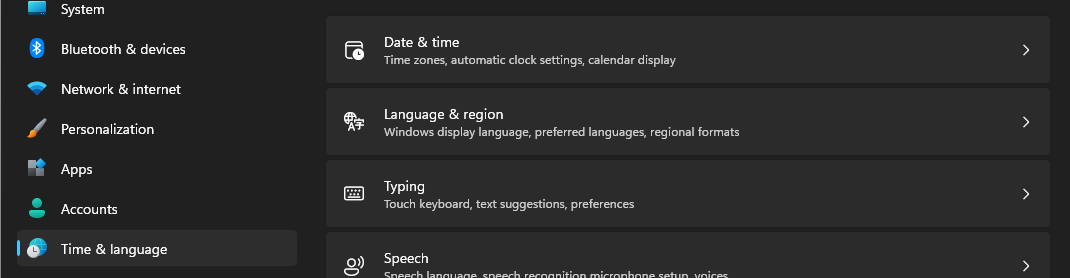
Confirm that:
The current date is correct.
The current time is correct.
The correct time zone is selected.
Enable Set time automatically, if available.
Synchronize the clock with an Internet time server.
Restart GibbsCAM after correcting the system clock.
Step 2 – Restart the Computer
After correcting the date and time, restart Windows and launch GibbsCAM again.
In many cases, the licensing system will resume normal operation once the clock is correct.
Step 3 – Check for Hardware Issues
If the date or time continues to reset after each reboot:
Replace the computer's CMOS (RTC) battery.
Verify the BIOS/UEFI clock retains the correct date and time after power is removed.
A failing CMOS battery is a common cause of repeated clock setback errors on older computers.
Step 4 – Virtual Machine Considerations
If GibbsCAM is running in a supported virtual machine:
Do not restore snapshots or checkpoints that revert the system clock.
Ensure time synchronization between the guest operating system and the virtualization platform is configured correctly.
Avoid manually changing the virtual machine's clock.
Step 5 – Contact CAMCO Support
If the error continues after confirming the system clock is correct, contact CAMCO Support.
Provide the following information:
GibbsCAM version
Windows version
License type (Standalone or Network License)
Whether the computer is physical or virtual
Screenshot of the error
Current system date and time
Existing .lic license file (if available)
Expected Result
After correcting the system date and time and eliminating the underlying cause, GibbsCAM recognizes the license normally and launches without displaying the Clock Setback Detected error.
Troubleshooting
Problem: The Error Returns Every Time the Computer Starts
Cause
The computer's CMOS battery may no longer retain the system clock.
Resolution
Replace the CMOS battery and verify the BIOS clock remains accurate after restarting.
Problem: The Error Occurred After Restoring a Backup
Cause
The system or license information was restored to an earlier point in time.
Resolution
Verify the system clock is correct. If the license remains unusable, contact CAMCO Support for assistance.
Problem: The Error Appears After Restoring a Virtual Machine Snapshot
Cause
The snapshot reverted the operating system to an earlier date or restored older licensing information.
Resolution
Avoid reverting production license servers or licensed workstations to older snapshots. If snapshots are required, consult your virtualization administrator for best practices.
Problem: The Date Is Correct but the Error Remains
Cause
The licensing system may still detect a previous clock rollback.
Resolution
Restart the computer after correcting the clock. If the issue persists, contact CAMCO Support.
Best Practices
Enable automatic time synchronization in Windows.
Replace failing CMOS batteries promptly.
Avoid manually changing the system clock.
Do not restore virtual machine snapshots on licensed systems without understanding the licensing impact.
Maintain accurate system time on both standalone computers and Network License (NLO) servers.
Related Articles
- License Showing the Wrong Expiration Date
- Using the Activation Check Utility
- Unable to Connect to the GibbsCAM Activation Server
- Virtual Server Support for GibbsCAM Network Licenses (NLO)
- VMware Best Practices
- Hyper-V Best Practices
- Microsoft Azure VM Best Practices
Keywords
Clock Setback, Clock Setback Detected, System Clock, Date and Time, License Error, RLM, Reprise License Manager, Standalone License, Network License, NLO, Virtual Machine, Snapshot, CMOS Battery, RTC Battery, Time Synchronization