
Summary
This error indicates that the selected Machine Definition Database (MDD) requires GibbsCAM features that are not currently available under your license.
The mismatch may be caused by:
Required license options have not been checked out (Network License).
Your hardware key does not include the required options.
The selected MDD was configured to require incorrect license options.
This article explains how to identify and resolve the issue.
Table of Contents
- Cause
- Resolution for Network License (NLO)
- Resolution for Standalone Hardware Key Licenses
- If the Correct License Is Already Available
- Troubleshooting
- Best Practices
- Related Articles
Symptoms
When opening a part or changing machines, GibbsCAM displays:
The MDD selected does not match your security options.

The machine cannot be loaded until the licensing mismatch is resolved.
Cause
Each Machine Definition Database (MDD) specifies which GibbsCAM modules are required to use that machine.
If your current license does not provide those modules, GibbsCAM prevents the machine from loading.
Common examples include:
Selecting a Mill machine while only Lathe options are licensed.
Selecting a 5-Axis machine without a 5-Axis license.
Selecting an MTM machine without MTM licensing.
Resolution for Network License (NLO)
With Network Licensing, the required options may simply not be checked out.
Step 1 – Open the License Checkout Window
If the License Checkout window is not already displayed:
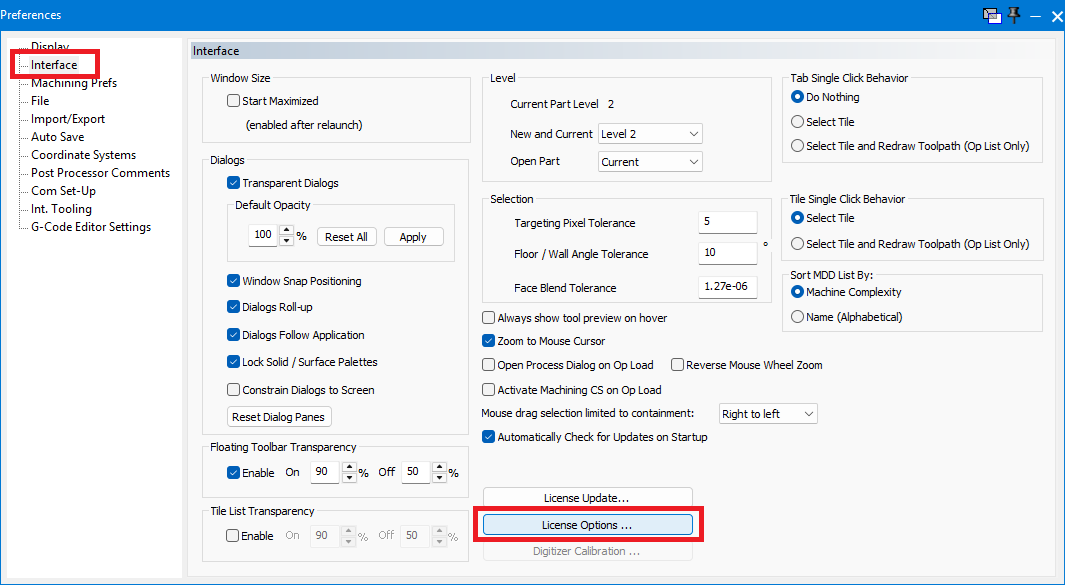
Open File > Preferences.
Select the Interface tab.
Click License Options.
The License Checkout window will open.
Step 2 – Check Out the Required Options
Select the license features required for the machine you want to use.
For example:
Mill
Lathe
4-Axis
5-Axis
MTM
Wire EDM
Probing
Click Check Out.
Click OK to check out the selected licenses.
Relaunch GibbsCAM.
Step 3 – Load the Machine Again
Return to the Document Control Dialog (DCD) and select the desired machine.
If the required licenses are now available, the machine will load normally.
Optional: Always Display the License Checkout Window
If you frequently switch machine types:
Open License Options.
Enable Always Show.
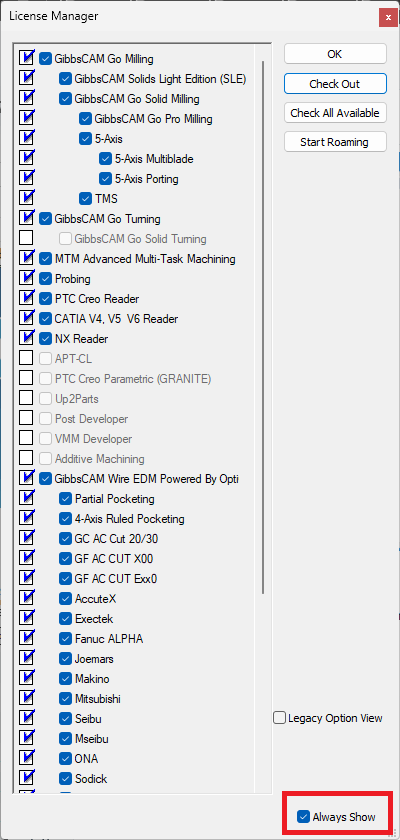
The License Checkout dialog will appear each time GibbsCAM starts, making it easier to select the required license options.
Resolution for Standalone Hardware Key Licenses
Hardware key licenses contain a fixed set of licensed features.
If the selected MDD requires features that are not included on the hardware key, the machine cannot be used.
Verify the Selected Machine
Open the Document Control Dialog (DCD) and confirm that the selected machine matches the capabilities included with your license.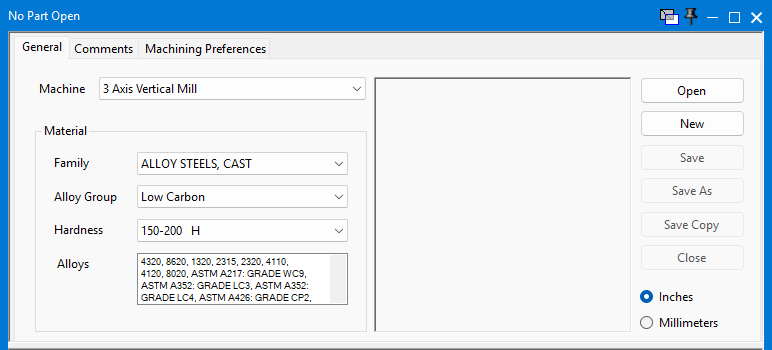
For example:
A Lathe-only license cannot load a Mill machine.
A Mill license without 5-Axis cannot load a 5-Axis MDD.
If additional functionality is required, contact your reseller to discuss upgrading your license.
If the Correct License Is Already Available
If you have already checked out all required license options (or your hardware key includes them) and the error still appears, the MDD itself may be incorrectly configured.
The machine definition may have been created with incorrect licensing requirements.
If you are using:
A custom MDD supplied by your reseller
A machine created by your company
A third-party machine definition
Contact the person or organization that created the MDD so they can verify its licensing configuration.
Expected Result
After the required license features are available and the selected MDD matches your licensed capabilities, the machine loads normally without displaying the security options error.
Troubleshooting
Problem: The Required License Option Is Not Available
Cause
The feature is not included with your current license or is already in use by another user.
Resolution
Verify your available license features and check out the required options if available.
Problem: I Already Checked Out Every Available License
Cause
The MDD may require features that your license does not include, or it may have been configured incorrectly.
Resolution
Verify the licensed features and have the MDD reviewed if necessary.
Problem: The License Checkout Window Does Not Appear
Resolution
Open:
File > Preferences > Interface > License Options
To always display the checkout dialog when GibbsCAM starts, enable Always Show.
Best Practices
Select a machine that matches your licensed capabilities.
Verify the required options before opening complex machine definitions.
Enable Always Show if you regularly switch between machine types.
Validate custom MDDs after making licensing changes or upgrades.
Related Articles
- What Options are on my GibbsCAM License?
- My License Is Missing Options
- How to Update Your GibbsCAM License
- Network License (NLO) Server Setup
- How to Track NLO Usage
- How to Kick Inactive Users with RLM
Keywords
MDD, Machine Definition Database, Security Options, License Options, Network License, NLO, Hardware Key, Machine License, Document Control Dialog, DCD, Mill, Lathe, 5-Axis, MTM, License Checkout