
Summary
This error indicates that GibbsCAM cannot detect the required USB hardware license key.
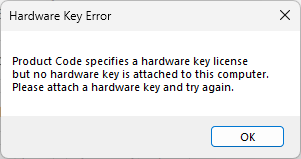
The problem is typically caused by one of the following:
The hardware key is not connected.
The hardware key drivers are not installed.
Windows is not detecting the USB device.
The USB hardware key is damaged or defective.
This article explains how to identify and resolve the issue.
Table of Contents
Cause
GibbsCAM requires a supported USB hardware key for hardware-locked licenses.
If Windows cannot communicate with the hardware key, GibbsCAM cannot validate the license.
Common causes include:
Hardware key is unplugged.
Missing or corrupted hardware key drivers.
Faulty USB port.
USB hub compatibility issues.
Failed or damaged hardware key.
Resolution
Follow the steps below in order.
Step 1 – Verify the Hardware Key Is Connected
Confirm that:
The hardware key is firmly connected to a USB port.
Any indicator LED on the key (if present) is illuminated.
The key has not become loose.
If possible, connect the key directly to the computer instead of using a USB hub or docking station.
Step 2 – Try a Different USB Port
Move the hardware key to another USB port.
If available, test both:
USB 2.0 ports
USB 3.x ports
After reconnecting the key, wait a few seconds for Windows to recognize the device before starting GibbsCAM.
Step 3 – Verify Windows Detects the Hardware Key
Open Device Manager and verify that the hardware key appears without warning icons.
If the device displays a yellow warning symbol or is listed as an unknown device, the required driver is probably missing or damaged.
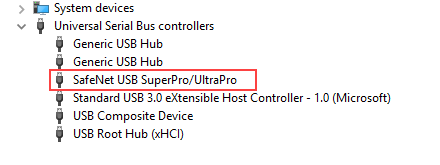
Step 4 – Install or Repair the Hardware Key Drivers
Install the appropriate driver for your hardware key.
Refer to:
Supported hardware keys include:
Sentinel/Rainbow SuperPro
Sentinel HASP / HASP LDK
If the drivers are already installed:
Run the 'SSD Cleanup' tool to clear out any sentinel drivers currently on the system.
Download and install the correct hardware key driver for your key.
Reconnect the hardware key before testing GibbsCAM again.
Step 5 – Test the Hardware Key on Another Computer
If possible:
Install the hardware key drivers on another computer.
Connect the hardware key.
Start GibbsCAM.
If the key is detected on another computer, the issue is likely related to the original workstation.
If the key is not detected on any computer, the hardware key may have failed.
Step 6 – Replace a Failed Hardware Key
If the hardware key is physically damaged or is no longer recognized after installing the correct drivers, contact CAMCO Support to discuss replacement options.
Be prepared to provide:
Company name
Product Code (if available)
Hardware key number (if readable)
Description of the problem
Expected Result
Windows successfully detects the USB hardware key, GibbsCAM validates the license, and the software starts normally.
Troubleshooting
Problem: The Hardware Key Works on Another Computer
Cause
The original workstation has a driver, USB, or Windows configuration problem.
Resolution
Reinstall the hardware key drivers and verify that Windows detects the device.
Problem: Windows Does Not Detect the Hardware Key
Cause
The driver is missing, the USB port has failed, or the hardware key is defective.
Resolution
Try another USB port, reinstall the drivers, and test the key on another computer.
Problem: The Hardware Key Is Detected but GibbsCAM Still Reports No Hardware Key
Cause
The installed license may not match the connected hardware key, or the license installation may be incomplete.
Resolution
Verify that the correct license has been installed and that the hardware key matches the Product Code used during registration.
Problem: The Hardware Key Was Recently Replaced
Cause
The replacement key must be registered before it can be used.
Resolution
Run the Registration Tool to generate a new license for the replacement hardware key.
Best Practices
Connect the hardware key directly to the computer whenever possible.
Avoid unplugging the hardware key while GibbsCAM is running.
Install the latest supported hardware key drivers.
Protect the hardware key from physical damage.
Record the hardware key number for future reference.
Related Articles
- Installing Hardware Key Drivers
- Online Registration Guide (Hardware-Locked Licenses)
- Offline Registration Guide (Hardware-Locked Licenses)
- Broken or Lost Hardware Key Replacement
- Error: "General License Error"
- Invalid Product Code Error During Registration
Keywords
No Hardware Key Detected, Hardware Key, USB License Key, Sentinel, Rainbow, SuperPro, HASP, LDK, USB Dongle, License Key, Driver, Hardware License