
Summary
If you receive an "Invalid Product Code" error while registering GibbsCAM, the Registration Tool was unable to validate the Product Code you entered.
This article explains the most common causes of this error and the steps to resolve it.
Table of Contents
- What Is a Product Code?
- Common Causes
- How to Verify Your Product Code
- If You Cannot Locate Your Product Code
- Troubleshooting
- Best Practices
- Related Articles
What Is a Product Code?
The Product Code is a unique identifier assigned to your GibbsCAM license.
It is required when:
Registering GibbsCAM for the first time
Updating a license
Moving a license to new hardware
Registering a Network License (NLO) server
Common Causes
Incorrect Product Code
The most common cause is entering the Product Code incorrectly.
Verify:
All characters are entered exactly as provided.
Similar characters are not confused:
0 (zero) vs O (letter O)
1 (one) vs I (letter I)
5 vs S
There are no extra spaces before or after the Product Code.
If possible, copy and paste the Product Code instead of typing it manually.
Using an Old Product Code
If your GibbsCAM license has been renewed, upgraded, or replaced, your previous Product Code may no longer be valid.
Use the Product Code provided with your most recent purchase or renewal.
Product Code Does Not Match the License Type
Some Product Codes are issued specifically for:
Standalone (Hardware Key) licenses
Network License (NLO) servers
Using the wrong Product Code for the selected registration type may result in an error.
Typographical Errors
Double-check for:
Missing characters
Transposed numbers
Accidental spaces
Incorrect capitalization
Although Product Codes are generally not case-sensitive, entering the complete code exactly as provided is recommended.
License Has Already Been Replaced
If your hardware key or server license has been replaced, transferred, or reissued, the original Product Code may no longer be valid.
Use the replacement Product Code supplied during the license transfer process.
How to Verify Your Product Code
If GibbsCAM has previously been activated, you may be able to recover the Product Code from your existing license file.
Locate your .lic license file.
Open the file using a text editor such as Notepad.
Near the top of the file, locate the line beginning with:
PCODE
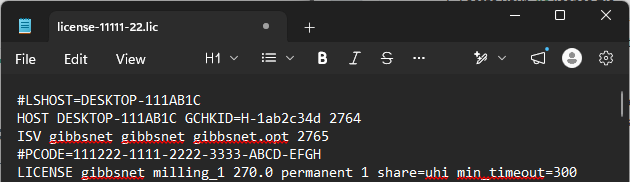
The Product Code appears immediately after the PCODE entry.
Tip: This is often the fastest way to recover a Product Code if the original registration email is no longer available.
If You Cannot Locate Your Product Code
If you no longer have your Product Code:
Check previous registration emails.
Check your original purchase documentation.
Review an existing .lic license file (if available).
Contact CAMCO Support for assistance.
Providing the following information can help locate your license:
Company name
Registered contact name
Serial number (if applicable)
Existing license file
Hardware key number (if applicable)
Expected Result
After entering a valid Product Code, the Registration Tool accepts the code and allows you to continue with the GibbsCAM registration process.
Troubleshooting
Problem: The Next Button Is Still Disabled
Possible Causes
Product Code entered incorrectly
Extra spaces copied from email
Registration Tool has not validated the code
Resolution
Re-enter the Product Code carefully and ensure all required registration fields are completed.
Problem: The Product Code Was Accepted Previously
Possible Causes
License has been replaced
Product Code has changed following an upgrade
Incorrect registration type selected
Resolution
Verify you are using the current Product Code associated with your active license.
Problem: I Have Lost My Product Code
Resolution
If an existing .lic file is available, open it with a text editor and locate the PCODE entry. Otherwise, contact CAMCO with your company information so your license can be located.
Best Practices
Save your Product Code with your purchase records.
Keep a backup of your .lic license file.
Copy and paste the Product Code whenever possible.
Record your hardware key number for future reference.
Store registration emails in a shared IT mailbox if multiple administrators manage licensing.
Related Articles
- I Lost My Product Code
- Online Registration Guide (Hardware-Locked Licenses)
- Offline Registration Guide (Hardware-Locked Licenses)
- Next Button Is Grayed Out in the Registration Tool
- My License Is Missing Options
- How to Test the Connection Between an NLO Client and Server
- How to Update Your GibbsCAM License
Keywords
Invalid Product Code, Product Code, Registration, Registration Tool, PCODE, License Registration, Hardware Key, Network License, NLO, License File, RLM, Activation