
Summary
If GibbsCAM crashes, freezes, or becomes stuck while displaying "Setting Up Globals" during startup, the cause is often a corrupted user preference file.
In many cases, deleting the PostDlogPrefs.xml file allows GibbsCAM to recreate it automatically the next time the software starts.
If the problem persists, running the Recovery Tool will reset your GibbsCAM user preferences to their default settings.
Table of Contents
- Cause
- Resolution 1 – Delete the PostDlogPrefs.xml File
- Resolution 2 – Run the Recovery Tool
- Resolution 3 – Verify the Installation
- Troubleshooting
- Best Practices
- Related Articles
Symptoms
You may experience one or more of the following:
GibbsCAM hangs at "Setting Up Globals" during startup.
GibbsCAM crashes before reaching the main window.
The splash screen remains on "Setting Up Globals" and never completes.
GibbsCAM closes without displaying an error.
Cause
A corrupted user preference file can prevent GibbsCAM from completing its startup process.
The file most commonly associated with this issue is:
PostDlogPrefs.xml
This file stores dialog and interface preferences. If it becomes damaged, GibbsCAM may be unable to finish initializing.
Resolution 1 – Delete the PostDlogPrefs.xml File
Close GibbsCAM.
Open File Explorer.
Browse to:
%USERPROFILE%\AppData\Roaming\Gibbs\GibbsCAM\<version>
Replace <version> with your installed GibbsCAM version (for example, 2026.0.x.x).
Locate the file:
PostDlogPrefs.xml
Delete the file (or rename it to keep a backup).
Launch GibbsCAM again.
If the file was the cause of the problem, GibbsCAM will automatically create a new PostDlogPrefs.xml file during startup.
Resolution 2 – Run the Recovery Tool
If deleting PostDlogPrefs.xml does not resolve the issue:
Close GibbsCAM.
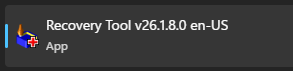
Open the Windows Start menu.
Search for Recovery Tool.
Alternatively, run the tool directly from:
C:\Program Files\Gibbs\GibbsCAM\<version>\Bin\Recovery Tool.exe
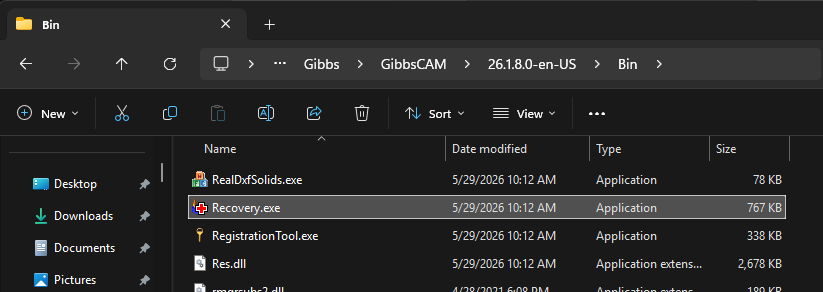
Launch the Recovery Tool for your installed version of GibbsCAM.
Allow the tool to reset your user settings.
Restart GibbsCAM.
Note: Running the Recovery Tool resets your GibbsCAM preferences and interface settings to their default values.
Resolution 3 – Verify the Installation
If the issue continues after completing the above steps:
Repair the GibbsCAM installation using Apps & Features or Programs and Features in Windows.
If necessary, perform a clean reinstall of GibbsCAM.
Delete the User Preferences folder here before reinstalling:
C:\Users\<username>\AppData\Roaming\Gibbs\GibbsCAM\<version>Do not run the Migration Tool until you have confirmed the new installation starts successfully, as migrating corrupted settings may reintroduce the problem.
Expected Result
GibbsCAM successfully completes the "Setting Up Globals" stage and opens normally.
Troubleshooting
Problem: GibbsCAM Still Stops at "Setting Up Globals"
Cause
Additional user preference files may be corrupted.
Resolution
Run the Recovery Tool to reset all user preferences.
Problem: The AppData Folder Cannot Be Found
Cause
The AppData folder is hidden by default in Windows.
Resolution
In File Explorer:
Select View > Show > Hidden items (Windows 11), or
Enable Hidden items from the View menu in earlier versions of Windows.
You can also paste the following directly into the File Explorer address bar:
%USERPROFILE%\AppData\Roaming\Gibbs\GibbsCAM
Problem: The Issue Returns After Migrating Settings
Cause
A corrupted preference file may have been copied from a previous installation.
Resolution
Run the Recovery Tool again or repeat the steps above without migrating the old preferences.
Best Practices
Run the Migration Tool before launching a new version of GibbsCAM for the first time.
Keep Windows and graphics drivers up to date.
Back up custom settings before resetting user preferences.
If startup problems occur after migrating settings, test with default preferences before migrating again.
Related Articles
- How to Reset GibbsCAM to the Default Settings
- How to Migrate Settings from a Previous GibbsCAM Installation
- Troubleshooting GibbsCAM Crashes, Freezes, or Unexpected Closures
- Run Windows System File Checker (SFC) and DISM Repair
Keywords
Setting Up Globals, Startup Freeze, Startup Crash, PostDlogPrefs.xml, Recovery Tool, Preferences, AppData, GibbsCAM Won't Start, Splash Screen, Startup Hang