
Summary
If GibbsCAM crashes or closes unexpectedly while saving a part file, the cause is often related to file access rather than the part itself.
Common causes include:
Antivirus or endpoint security software blocking the save operation.
Insufficient permissions to the save location.
Problems writing to a network drive.
Corrupted user preferences.
Corrupted Windows system files.
This article provides the recommended troubleshooting steps.
Table of Contents
Symptoms
You may experience one or more of the following:
GibbsCAM crashes immediately after clicking Save.
GibbsCAM closes unexpectedly during a save.
Saving never completes.
A .ZOOB file is left behind.
Saving works in one location but not another.
Cause
Crashes during a save are commonly caused by one of the following:
Endpoint security software blocking GibbsCAM.
Lack of write permissions.
Network interruptions while saving.
Corrupted user preference files.
Windows system file corruption.
Resolution
Step 1 – Save to a Local Folder
If you are saving directly to a network drive:
Save the part to a local folder such as Documents or Desktop.
Verify that the save completes successfully.
If successful, copy the file to the network location afterward.
If saving locally works but saving to the network does not, the issue is likely related to the network connection, permissions, or security policies.
Step 2 – Verify Folder Permissions
Confirm that your Windows account has:
Read permission
Write permission
Modify permission
for the folder where you are saving the file.
If necessary, contact your IT administrator.
Step 3 – Check Antivirus or Endpoint Security Software
Security software may prevent GibbsCAM from creating or modifying files while saving.
Temporarily disable the security software (if permitted by your IT department) and test the save again.
If the problem is resolved, configure an exclusion for the GibbsCAM installation folder and file types before re-enabling protection.
Step 4 – Cisco Secure Endpoint (Formerly Cisco AMP)
Cisco Secure Endpoint (formerly Cisco AMP for Endpoints) has been known to interfere with GibbsCAM while saving files.
When GibbsCAM saves a part, the application launches additional helper processes that Cisco Secure Endpoint may incorrectly identify as suspicious activity.
If your organization uses Cisco Secure Endpoint:
Configure a Path Exclusion for:
virtual.exeInclude virtual.exe and all of its child processes in the exclusion policy.
Apply the updated policy to affected workstations.
Restart GibbsCAM and test saving again.
Your IT administrator can configure these exclusions using Cisco Secure Endpoint management policies.
Step 5 – Run the Recovery Tool
Corrupted user preference files can occasionally cause unexpected crashes.
Close GibbsCAM.
Launch the Recovery Tool from the Windows Start menu.

Alternatively, run the tool directly from:
C:\Program Files\Gibbs\GibbsCAM\<version>\Bin\Recovery Tool.exe
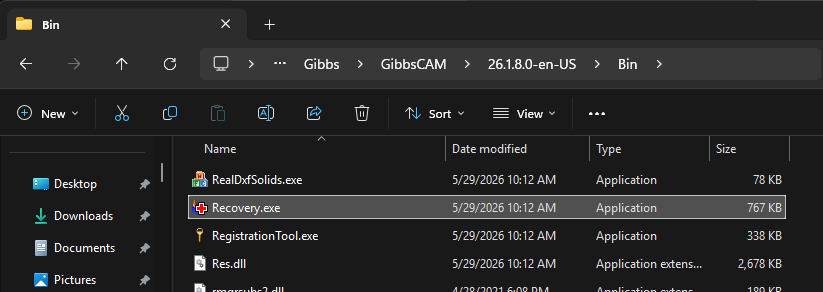
Run the Recovery Tool for the version of GibbsCAM you are using.
Restart GibbsCAM and test again.
Note: The Recovery Tool resets your GibbsCAM preferences to their default settings.
Step 6 – Repair Windows System Files
If GibbsCAM continues to crash during save operations, run the Windows DISM and System File Checker (SFC) utilities to repair any corrupted Windows system files.
See the related article:
Run Windows System File Checker (SFC) and DISM Repair
Expected Result
GibbsCAM saves part files successfully without crashing, and no temporary .ZOOB files remain after the save completes.
Troubleshooting
Problem: Only One Part Crashes While Saving
Cause
The part file may be damaged.
Resolution
Save the part under a new filename or recreate the part from a recent backup if available.
Problem: Every Part Crashes While Saving
Cause
The issue is likely environmental rather than file-specific.
Resolution
Review security software, permissions, and Windows health.
Problem: Saving Works Locally but Not to the Network
Cause
The network location may be unavailable or blocking write operations.
Resolution
Verify network connectivity, folder permissions, and any security policies affecting the network share.
Problem: A .ZOOB File Is Left Behind
Cause
The save operation was interrupted before completion.
Resolution
See What Is a .ZOOB File? for recovery instructions.
Best Practices
Save work frequently.
Enable Autosave and Backup Files.
Keep antivirus exclusions up to date.
Save locally before copying files to a network share whenever possible.
Keep Windows and graphics drivers current.
Related Articles
- How to Recover a Corrupted GibbsCAM Part File
- What Is a .ZOOB File?
- How to Configure Autosave and Backup Files
- Troubleshooting GibbsCAM Crashes, Freezes, or Unexpected Closures
- Run Windows System File Checker (SFC) and DISM Repair
Keywords
Crash on Save, Saving Crash, Save Failure, ZOOB, Virtual.exe, Cisco AMP, Cisco Secure Endpoint, Antivirus, Endpoint Security, Network Drive, Permissions, Recovery Tool