
Summary
The "Out of Memory" error indicates that GibbsCAM was unable to allocate enough system memory to complete the requested operation.
This does not necessarily mean that your computer has completely run out of RAM. The error can also occur when Windows is unable to provide the required contiguous memory, when available virtual memory is exhausted, or when extremely large or complex part files exceed available system resources.
This article provides common causes and recommended troubleshooting steps.
Table of Contents
Symptoms
You may experience one or more of the following:
GibbsCAM displays an "Out of Memory" error.
GibbsCAM crashes while opening or processing a part.
A simulation or toolpath calculation fails unexpectedly.
GibbsCAM becomes slow or unresponsive before displaying the error.
The error occurs only with large or complex part files.
Procedure
Step 1 – Close Unnecessary Applications
Running multiple memory-intensive applications at the same time reduces the amount of memory available to GibbsCAM.
Save your work.
Close applications that are not currently needed.
Restart GibbsCAM and try the operation again.
Expected Result
Additional memory becomes available for GibbsCAM.
Step 2 – Restart the Computer
Over time, Windows may accumulate fragmented memory allocations and background processes that consume available resources.
Restarting the computer clears memory and allows Windows to begin with a clean environment.
Expected Result
The operation completes without the error.
Step 3 – Verify Available System Memory
Open Task Manager and review memory usage while GibbsCAM is running.
If physical memory usage remains consistently high, your system may not have sufficient RAM for the workload.
CAMCO recommends:
32 GB RAM for most users.
64 GB or more for large assemblies, complex machining projects, or heavy multitasking.
Expected Result
Sufficient physical memory is available while working.
Step 4 – Reduce Part Complexity
Very large models and complex machining operations require significantly more memory.
Consider:
Suppressing unnecessary operations.
Removing unused geometry.
Breaking large jobs into multiple part files where practical.
Processing smaller groups of operations instead of calculating everything at once.
Delete solids historys.
Expected Result
Memory requirements are reduced, allowing the operation to complete successfully.
Step 5 – Verify Virtual Memory Settings
Windows uses virtual memory (page file) when physical RAM becomes limited.
If the page file has been disabled or configured too small, GibbsCAM may report memory-related errors.
For most systems, CAMCO recommends allowing Windows to Automatically Manage Paging File Size.
Expected Result
Windows can allocate additional virtual memory when required.
Step 6 – Update Windows and Graphics Drivers
Outdated Windows components or graphics drivers can contribute to memory management issues.
Verify that:
Windows is fully updated.
The latest graphics driver from NVIDIA or AMD is installed.
All recommended system updates have been applied.
Expected Result
System stability and memory management are improved.
Step 7 – Run the Recovery Tool
If the error occurs consistently with multiple files, corrupted user preferences may be contributing to the issue.
Close GibbsCAM.
Launch the Recovery Tool for your installed version from the Windows Start menu.

Alternatively, run the tool directly from:
C:\Program Files\Gibbs\GibbsCAM\<version>\Bin\Recovery Tool.exe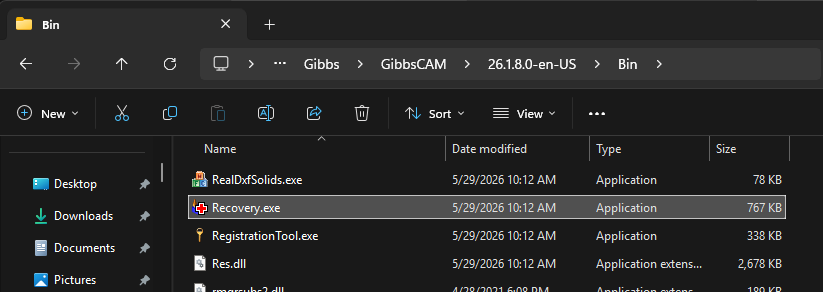
Restart GibbsCAM.
Note: Running the Recovery Tool resets GibbsCAM user preferences to their default settings.
Expected Result
Corrupted configuration files are removed as a possible cause.
Expected Result
GibbsCAM completes the requested operation without displaying the "Out of Memory" error.
Additional Information
Common Causes
The Out of Memory error is commonly associated with:
Very large part files.
Complex machining operations.
Multiple large applications running simultaneously.
Insufficient installed RAM.
Virtual memory (page file) configured too small or disabled.
Corrupted user preferences.
Resource limitations imposed by Windows.
Memory Usage Is Not Always the Problem
Even if Windows reports that free memory is available, GibbsCAM may still be unable to obtain the continuous block of memory required for certain operations.
Restarting Windows often resolves temporary allocation issues.
Hardware Recommendations
For the best performance with larger projects, CAMCO recommends:
32 GB or more of RAM.
NVMe SSD storage.
A modern Intel Core Ultra, Intel Core i7/i9, or AMD Ryzen 7/Ryzen 9 processor with strong single-core performance.
A dedicated NVIDIA or AMD graphics card that meets GibbsCAM system requirements.
If the Error Occurs with Only One Part
If only a single part consistently produces the error while other files open normally, the part file may be unusually complex or partially corrupted.
If possible:
Test using a backup copy.
Simplify the model.
Contact CAMCO Technical Support if the issue persists.
Related Articles
- Troubleshooting GibbsCAM Crashes, Freezes, or Unexpected Closures
- How to Recover a Corrupted GibbsCAM Part File
- Run Windows System File Checker (SFC) and DISM Repair
- Hardware and System Requirements
Explore More from CAMCO
Visit the CAMCO website to learn more about:
Technical & Post Support
- Downloads & Helpful Resources
Keywords
Out of Memory, Memory Error, Insufficient Memory, RAM, Virtual Memory, Page File, Memory Allocation, Large Part, Performance, Crash, Low Memory