
Summary
If GibbsCAM displays the error "LoadLibrary failed with error 126: The specified module could not be found." during startup, Windows was unable to load one or more required graphics libraries.
This error is most commonly related to graphics hardware configuration, outdated graphics drivers, Remote Desktop (RDP) sessions using the incorrect graphics adapter, or corrupted Windows system files.
Table of Contents
Symptoms
You may experience one or more of the following:
GibbsCAM displays "LoadLibrary failed with error 126" during startup.
GibbsCAM immediately closes after the error appears.
GibbsCAM launches locally but fails when accessed remotely through Windows Remote Desktop (RDP).
The error occurs after updating graphics drivers or Windows.
Procedure
Step 1 – Verify the Graphics Adapter
GibbsCAM requires a supported dedicated graphics card for optimal performance.
Right-click the Windows desktop and select Display Settings.
Select Advanced Display.
Choose Display Adapter Properties.
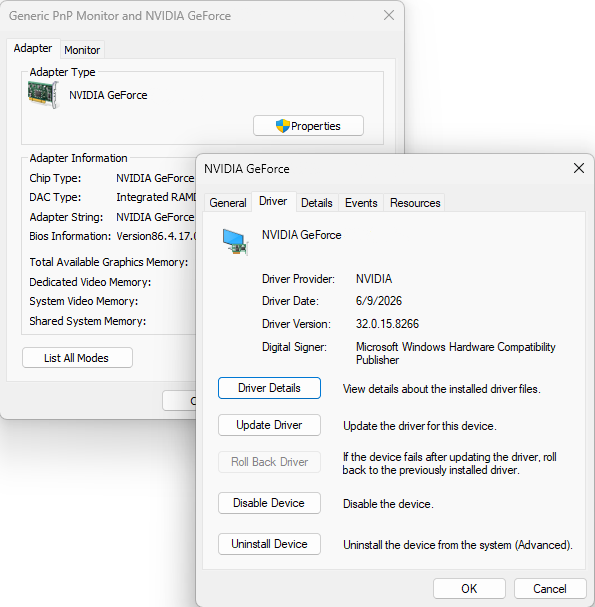
Verify the Adapter Type.
A supported NVIDIA or AMD graphics adapter is recommended.
If only an Intel integrated graphics adapter is being used, the system may not meet the recommended hardware requirements for GibbsCAM.
Expected Result
Windows identifies a supported dedicated graphics adapter.
Step 2 – Update the Graphics Driver
Outdated graphics drivers are one of the most common causes of this error.
Determine the graphics card manufacturer.
Download the latest driver directly from the manufacturer's website.
Install the updated driver.
Restart Windows.
Expected Result
The graphics driver loads successfully and GibbsCAM starts normally.
Step 3 – If Using Windows Remote Desktop (RDP)
When connecting through Windows Remote Desktop, the session may default to the computer's integrated Intel graphics adapter instead of the dedicated GPU required by GibbsCAM.
If this occurs:
Disconnect the Remote Desktop session.
Disable the Intel integrated graphics adapter (if appropriate for your environment).
Reconnect using Remote Desktop.
Launch GibbsCAM again.
This forces Windows to utilize the dedicated graphics adapter during the remote session.
Important: Disabling hardware devices should only be performed by qualified users or IT administrators, especially on shared or managed workstations.
Expected Result
The Remote Desktop session utilizes the dedicated graphics adapter and GibbsCAM launches successfully.
Step 4 – Check for Multiple Graphics Adapters
Some workstations contain multiple dedicated graphics adapters or both integrated and dedicated graphics.
Conflicts between adapters can occasionally prevent required graphics libraries from loading.
Open Device Manager.
Expand Display adapters.
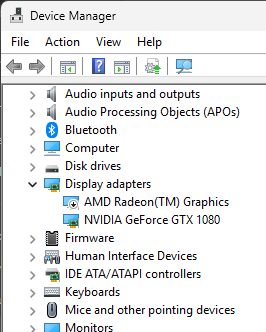
Verify which adapters are installed.
If appropriate, temporarily disable the adapter that is not being used by GibbsCAM.
Restart GibbsCAM.
Expected Result
GibbsCAM loads using the correct graphics adapter.
Step 5 – Repair Windows System Files
Corrupted Windows system files can also prevent required DLL files from loading.
Run the Windows System File Checker (SFC) and DISM utilities to repair corrupted operating system files.
Refer to the related article:
Windows System File Checker (SFC) and DISM Repair
Expected Result
Missing or corrupted Windows system files are repaired.
Expected Result
GibbsCAM launches successfully without displaying the "LoadLibrary failed with error 126" message.
Related Video
None available at this time.
Additional Information
Common Causes
This error is typically caused by one or more of the following:
Windows Remote Desktop using the integrated graphics adapter.
Outdated graphics drivers.
Multiple graphics adapters causing driver conflicts.
Missing or corrupted Windows system files.
Unsupported graphics hardware.
Best Practices
Install the latest graphics drivers directly from NVIDIA or AMD.
Use a dedicated graphics card that meets GibbsCAM system requirements.
Keep Windows fully updated.
If using Remote Desktop, configure the system to use the dedicated graphics processor whenever possible.
Troubleshooting
Problem: The error only occurs during Remote Desktop sessions.
Possible Causes
Windows Remote Desktop is using the integrated Intel graphics adapter.
Resolution
Configure the remote workstation to use the dedicated graphics adapter, or disable the integrated adapter if appropriate for your environment.
Problem: The error began after updating Windows.
Possible Causes
Windows replaced the graphics driver with a generic version.
Resolution
Download and install the latest graphics driver from the graphics card manufacturer.
Problem: The error persists after updating the graphics driver.
Possible Causes
Multiple graphics adapters are conflicting.
Windows system files are corrupted.
Resolution
Temporarily disable the unused graphics adapter and run the Windows SFC and DISM repair utilities.
Related Articles
- Using GibbsCAM Remotely with Windows Remote Desktop (RDP)
- Run Windows System File Checker (SFC) and DISM Repair
- Troubleshooting GibbsCAM Crashes, Freezes, or Unexpected Closures
- Hardware and System Requirements
- Error: LoadLibrary Failed With Error 1114
Explore More from CAMCO
Visit the CAMCO website to learn more about:
Technical & Post Support
- Downloads & Helpful Resources
Keywords
LoadLibrary Failed, LoadLibrary Error 126, Error 126, The Specified Module Could Not Be Found, Graphics Driver, Remote Desktop, RDP, Intel Graphics, NVIDIA, AMD, DLL Error, Graphics Adapter