
Summary
If GibbsCAM displays the error "LoadLibrary failed with error 1114: A dynamic link library (DLL) initialization routine failed." during startup, Windows was unable to initialize a required graphics library.
This issue is most commonly caused by graphics driver configuration, Windows power management settings, or outdated graphics drivers.
Table of Contents
Symptoms
You may experience one or more of the following:
GibbsCAM displays "LoadLibrary failed with error 1114" during startup.
GibbsCAM closes immediately after the error appears.
GibbsCAM will not launch.
The error occurs after a graphics driver update or Windows update.
Procedure
Step 1 – Restart Windows
Save any open work.
Restart your computer.
Launch GibbsCAM again.
A restart can resolve temporary driver initialization issues.
Expected Result
GibbsCAM launches normally.
Step 2 – Update Your Graphics Driver
Outdated or corrupted graphics drivers are one of the most common causes of this error.
Identify your graphics adapter using Device Manager.
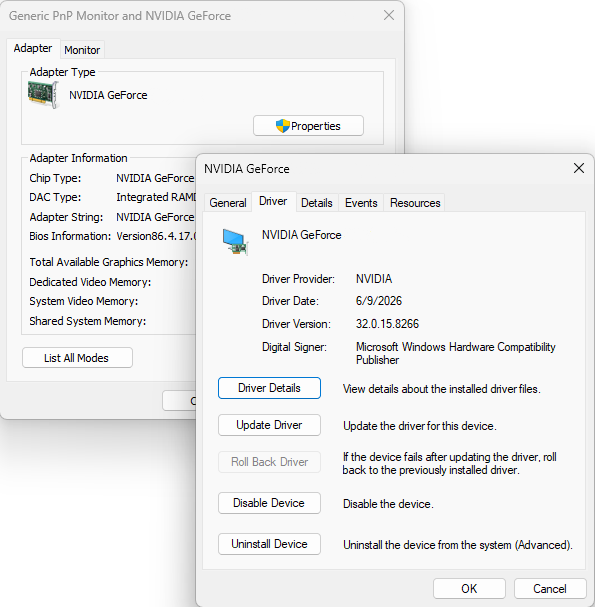
Download the latest driver directly from your graphics card manufacturer.
Install the updated driver.
Restart Windows.
Expected Result
The graphics driver initializes correctly and GibbsCAM launches successfully.
Step 3 – Configure Windows for High Performance Graphics
On systems with both integrated and dedicated graphics adapters (such as many laptops), Windows may attempt to launch GibbsCAM using the integrated GPU.
Configure Windows to use the high-performance graphics processor.
If your system supports Switchable Graphics:
Open Control Panel.
Select Power Options.
Choose Change plan settings for your active power plan.
Select Change advanced power settings.
Expand Switchable Dynamic Graphics (if available).
Set both On Battery and Plugged In to Maximize Performance.
Apply the changes and restart Windows.
Expected Result
Windows uses the dedicated graphics processor when launching GibbsCAM.
Step 4 – Configure Windows Graphics Settings
Open Settings.
Navigate to System > Display > Graphics.
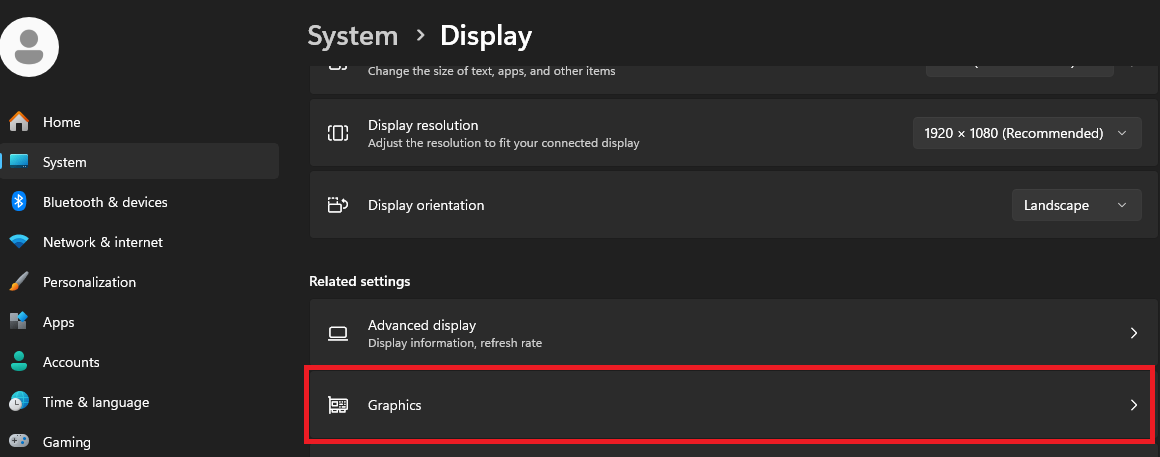
Add Virtual.exe if it is not already listed.
Located in:
C:\Program Files\Gibbs\GibbsCAM\<version>\Bin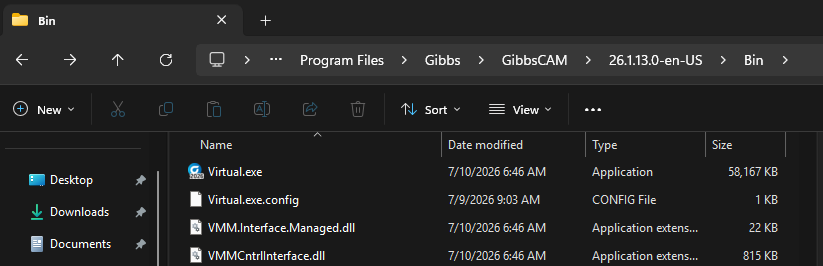
Choose High Performance.
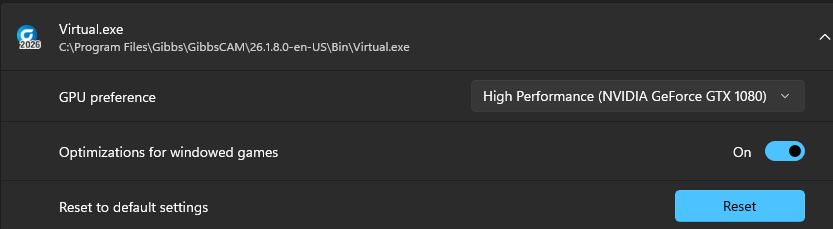
Save the changes.
Windows will attempt to use the dedicated GPU whenever GibbsCAM is launched.
Step 5 – Repair or Reinstall GibbsCAM
If the problem continues:
Repair the GibbsCAM installation using Windows Apps & Features.

Select Modify.
Select Repair.
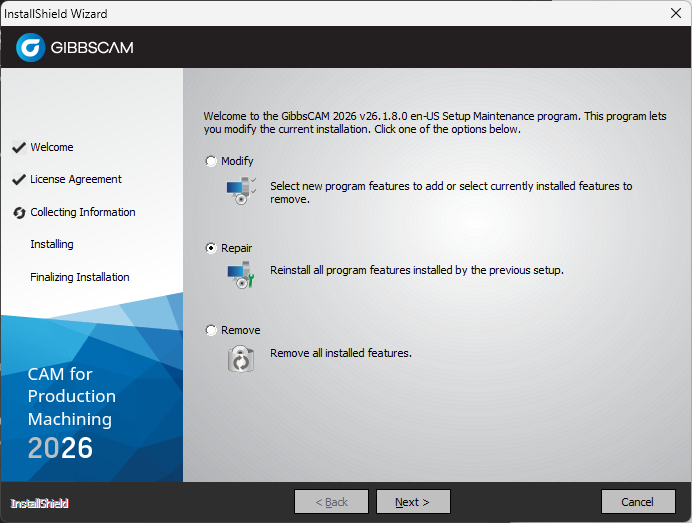
If repairing does not resolve the issue, uninstall GibbsCAM.
Restart Windows.
Reinstall the latest supported version.
Expected Result
Any damaged or missing application files are restored.
Expected Result
GibbsCAM launches normally without displaying the LoadLibrary failed with error 1114 message.
Additional Information
Common Causes
This error is typically caused by:
Outdated graphics drivers.
Corrupted graphics drivers.
Incorrect Windows graphics or power management settings.
Systems with switchable graphics selecting the wrong GPU.
Corrupted GibbsCAM installation files.
Best Practices
Keep graphics drivers current by downloading them directly from the GPU manufacturer.
Configure GibbsCAM to use the dedicated graphics processor on systems with multiple GPUs.
Keep Windows fully updated.
Use the High Performance Windows power plan when running CAD/CAM applications.
Troubleshooting
Problem: The error still appears after updating the graphics driver.
Possible Causes
Windows is still using the integrated GPU.
The graphics driver installation is corrupted.
Resolution
Configure GibbsCAM to use the dedicated graphics processor and perform a clean graphics driver installation if necessary.
Problem: The error only occurs when running on battery power.
Possible Causes
Windows power management is forcing the integrated graphics processor.
Resolution
Configure Switchable Dynamic Graphics to Maximize Performance for both battery and AC power.
Problem: The error began after a Windows Update.
Possible Causes
The graphics driver may have been replaced by Windows Update.
Resolution
Reinstall the latest driver from the graphics card manufacturer's website.
Related Articles
- Troubleshooting GibbsCAM Crashes, Freezes, or Unexpected Closures
- Run Windows System File Checker (SFC) and DISM Repair
- Hardware and System Requirements
Explore More from CAMCO
Visit the CAMCO website to learn more about:
Technical & Post Support
- Downloads & Helpful Resources
Keywords
LoadLibrary Failed, LoadLibrary Error 1114, DLL Initialization Routine Failed, Graphics Driver, GPU, NVIDIA, AMD, Integrated Graphics, Switchable Graphics, High Performance GPU, Startup Error