
Summary
If GibbsCAM displays the error:
"The application was unable to start correctly (0xC0150002)."
Windows is unable to locate or initialize one or more required Microsoft runtime components needed by the application.
This error is most commonly caused by missing Microsoft Visual C++ runtime libraries, incomplete Windows updates, or damaged DirectX components.
This article outlines the recommended troubleshooting steps to restore the required runtime components and successfully launch GibbsCAM.
Table of Contents
Before You Begin
Important: This error originates from Windows and typically indicates a missing or corrupted software dependency rather than a problem with the GibbsCAM installation itself.
Procedure
Step 1 – Install All Windows Updates
Many Microsoft runtime components are delivered through Windows Update.
Open Settings > Windows Update.
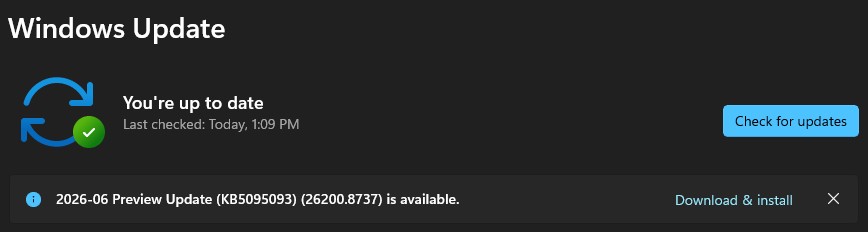
Select Check for Updates.
Install all available updates.
Restart the computer if prompted.
Repeat the process until Windows reports that no additional updates are available.
Note: Windows updates are often installed in multiple stages and may require several restart cycles.
Expected Result
Windows installs all required operating system updates and runtime components.
Step 2 – Install the Required Microsoft Visual C++ Runtime
This error is frequently caused by a missing Microsoft Visual C++ runtime library.
For systems requiring the Visual Studio 2005 runtime:
Download the appropriate Microsoft Visual C++ Redistributable package for your operating system.
Install the runtime.
Restart the computer.
Note: Use the version recommended by CAMCO Technical Support or required by your GibbsCAM release. Older versions of GibbsCAM may depend on legacy Microsoft Visual C++ runtime libraries.
Expected Result
The required runtime libraries are installed successfully.
Step 3 – Run Windows System File Checker (SFC)
If the runtime is already installed, Windows system files may be corrupted.
Open Command Prompt as Administrator.
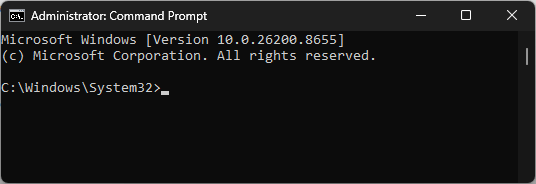
Run:
sfc /scannow
Allow the scan to complete.
Restart the computer.
If Windows reports files that cannot be repaired, run the DISM repair procedure described in the Windows System File Checker (SFC) and DISM Repair article.
Expected Result
Corrupted Windows system files are repaired.
Step 4 – Verify the DirectX Runtime
If the error persists after installing the Visual C++ runtime, the Microsoft DirectX runtime may be damaged or incomplete.
Install all available Windows updates.
Update your graphics driver.
If necessary, reinstall the DirectX runtime components recommended by Microsoft.
Expected Result
Required DirectX components are restored.
Step 5 – Repair or Reinstall GibbsCAM
If all Windows runtime components have been verified:
Repair the GibbsCAM installation using Apps & Features or Programs and Features.

Modify > RepairIf necessary, uninstall GibbsCAM.
Restart Windows.
Reinstall the latest supported version.
Do not migrate user settings until you have confirmed that GibbsCAM launches successfully.
Expected Result
GibbsCAM launches successfully.
Expected Result
GibbsCAM starts normally without displaying Application Error 0xC0150002.
Additional Information
Common Causes
Application Error 0xC0150002 is commonly caused by:
Missing Microsoft Visual C++ runtime libraries.
Corrupted Microsoft Visual C++ runtime installation.
Incomplete Windows updates.
Damaged DirectX runtime components.
Corrupted Windows system files.
Damaged application installation.
Best Practices
Keep Windows fully updated.
Install Microsoft Visual C++ Redistributables from Microsoft.
Keep graphics drivers current.
Restart Windows after installing runtime components before launching GibbsCAM.
Avoid installing runtime packages from third-party websites.
Troubleshooting
Problem: The error persists after installing the Visual C++ runtime.
Possible Causes
Windows system corruption.
Damaged DirectX runtime.
Resolution
Run SFC and DISM, install all Windows updates, and verify the DirectX runtime.
Problem: The error appeared after reinstalling Windows.
Possible Causes
Required runtime components have not yet been installed.
Resolution
Install all Windows updates before reinstalling GibbsCAM.
Problem: The error occurs only on one workstation.
Possible Causes
Corrupted Windows installation.
Missing runtime dependencies.
Resolution
Verify Windows health using SFC and DISM, then reinstall the required Microsoft runtime components.
Related Articles
- Run Windows System File Checker (SFC) and DISM Repair
- Error: Application Error 0xC0150004
- Troubleshooting GibbsCAM Crashes, Freezes, or Unexpected Closures
- How to Install GibbsCAM
- Hardware and System Requirements
Explore More from CAMCO
Visit the CAMCO website to learn more about:
Technical & Post Support
- Downloads & Helpful Resources
Keywords
0xC0150002, Application Error, Visual C++, Microsoft Visual C++ Redistributable, Runtime Error, DirectX, Missing Runtime, DLL Error, Windows Update