
Summary
If GibbsCAM crashes with Exception Code: 0xE06D7363 or Exception Code: 0xE0434352, Windows has detected an unhandled software exception while the application was running.
These exception codes are generic Windows application exceptions and do not identify the root cause of the crash.
0xE06D7363 is typically associated with a Microsoft Visual C++ exception.
0xE0434352 is typically associated with a Microsoft .NET Framework exception.
These errors are commonly caused by corrupted Windows system files, damaged Microsoft runtime components, third-party software conflicts, malware, storage errors, or application-specific issues.
This article provides recommended troubleshooting steps to identify and resolve the problem.
Table of Contents
- Procedure
- What Do These Exception Codes Mean?
- Common Causes
- Best Practices
- Troubleshooting
- Related Articles
Symptoms / Objective
You may experience one or more of the following:
GibbsCAM crashes with Exception Code 0xE06D7363.
GibbsCAM crashes with Exception Code 0xE0434352.
Windows Event Viewer records one of these exception codes.
GibbsCAM crashes during startup or while performing specific operations.
The crash occurs after installing Windows updates or third-party software.
Procedure
Step 1 – Restart Windows
Restart the computer before performing additional troubleshooting.
Temporary Windows resource or driver issues may be resolved by a restart.
Expected Result
If the issue was temporary, GibbsCAM launches normally.
Step 2 – Run Windows System File Checker (SFC) and DISM
Corrupted Windows system files are one of the most common causes of these exception codes.
Open the Start menu.
Search for Command Prompt.
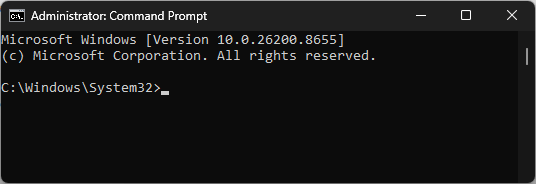
Right-click Command Prompt and select Run as administrator.
Run:
sfc /scannow
Allow the scan to complete.
If SFC reports files that cannot be repaired, run the DISM repair procedure described in the Windows System File Checker (SFC) and DISM Repair article.
Restart Windows.
Expected Result
Windows repairs any corrupted operating system files.
Step 3 – Install Windows Updates
Open Settings > Windows Update.
Select Check for Updates.
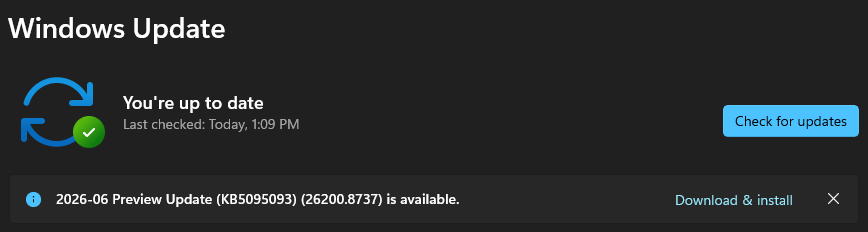
Install all available updates.
Restart the computer.
Repeat until Windows reports there are no additional updates.
Expected Result
Windows is fully updated with the latest security and compatibility fixes.
Step 4 – Perform a Clean Boot
Background applications can interfere with Microsoft runtime components used by GibbsCAM.
Press Windows + R.
Type:
msconfig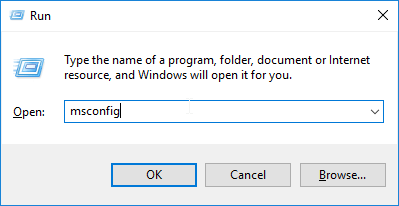
Press Enter.
Open the Services tab.
Check Hide all Microsoft services.
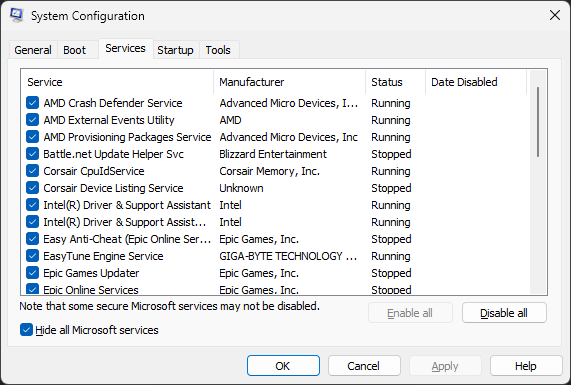
Select Disable all.
Open the Startup tab.
Select Open Task Manager.
Disable all startup applications.
Restart the computer.
Test GibbsCAM.
Expected Result
If another application was causing the conflict, GibbsCAM operates normally after the clean boot.
Step 5 – Test in Safe Mode
Testing in Safe Mode can help determine whether a third-party driver or application is causing the crash.
Restart Windows into Safe Mode.
Launch GibbsCAM.
If the software operates normally, the issue is likely caused by a third-party service, driver, or startup application.
Expected Result
The results help determine whether the issue is caused by Windows or third-party software.
Step 6 – Check the Hard Drive for Errors
Storage corruption can lead to application exceptions.
Open Command Prompt as Administrator.
Run:
chkdsk /r
If prompted, schedule the scan for the next restart.
Restart the computer and allow the scan to complete.
Expected Result
Windows repairs any file system errors that are detected.
Step 7 – Run the GibbsCAM Recovery Tool
If the crash only occurs in GibbsCAM:
Close GibbsCAM.
Launch the Recovery Tool for your installed version from the Windows Start menu.
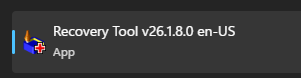
Alternatively, run the tool directly from:
C:\Program Files\Gibbs\GibbsCAM\<version>\Bin\Recovery Tool.exe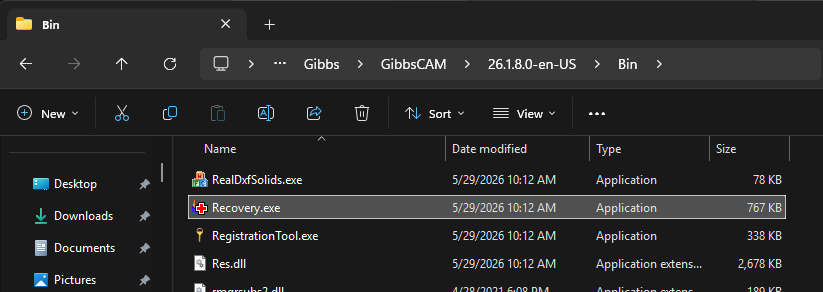
Restart GibbsCAM.
Note: The Recovery Tool resets GibbsCAM user preferences to their default settings.
Expected Result
Corrupted GibbsCAM preference files are removed as a possible cause.
Step 8 – Repair or Reinstall Microsoft Runtime Components
Because these exception codes originate from Microsoft runtime libraries, repairing or reinstalling the following components may resolve the issue:
Microsoft Visual C++ Redistributables
Microsoft .NET Framework (where applicable)
If your IT department manages workstation software, contact them before reinstalling system components.
Expected Result
Required runtime components are restored to a healthy state.
Expected Result
GibbsCAM launches and operates normally without generating Exception Code 0xE06D7363 or 0xE0434352.
Additional Information
What Do These Exception Codes Mean?
Exception Code 0xE06D7363
Indicates that Windows detected an unhandled Microsoft Visual C++ exception. The code identifies the type of runtime exception but does not indicate the specific cause.
Exception Code 0xE0434352
Indicates that Windows detected an unhandled Microsoft .NET Framework exception. Like 0xE06D7363, it identifies the runtime environment rather than the underlying problem.
Common Causes
Possible causes include:
Corrupted Windows system files.
Damaged Microsoft Visual C++ runtime components.
Corrupted Microsoft .NET Framework components.
Third-party software conflicts.
Malware.
Hard drive corruption.
Corrupted GibbsCAM user preferences.
Damaged GibbsCAM installation.
Best Practices
Keep Windows fully updated.
Keep Microsoft Visual C++ Redistributables current.
Keep Microsoft .NET Framework updated through Windows Update.
Run SFC and DISM periodically to verify Windows health.
Avoid installing unnecessary system optimization utilities.
Troubleshooting
Problem: The crash only occurs in GibbsCAM.
Possible Causes
Corrupted GibbsCAM preferences.
Damaged installation files.
Resolution
Run the Recovery Tool. If necessary, repair or reinstall GibbsCAM.
Problem: Multiple applications are crashing with these exception codes.
Possible Causes
Windows system corruption.
Damaged Microsoft runtime components.
Storage or memory problems.
Resolution
Run SFC, DISM, CHKDSK, and Windows Memory Diagnostic. Repair Microsoft Visual C++ Redistributables and Microsoft .NET Framework if necessary.
Problem: The crash began after installing new software.
Possible Causes
Third-party software conflict.
Resolution
Perform a Clean Boot to identify the conflicting application.
Related Articles
- Run Windows System File Checker (SFC) and DISM Repair
- Error: Exception Code 0xC0000005 (Access Violation)
- Error: "The Instruction at 0x00007FF... Referenced Memory..."
- Troubleshooting GibbsCAM Crashes, Freezes, or Unexpected Closures
- How to Reset GibbsCAM to the Default Settings
Explore More from CAMCO
Visit the CAMCO website to learn more about:
Technical & Post Support
- Downloads & Helpful Resources
Keywords
0xE06D7363, 0xE0434352, Visual C++ Exception, .NET Exception, Application Exception, Unhandled Exception, Crash, Microsoft Visual C++, .NET Framework, SFC, DISM, CHKDSK