
Summary
If text within GibbsCAM dialog windows appears too large, is cut off, overlaps other controls, or does not fit within buttons and menus, the issue is typically caused by Windows display scaling, custom DPI settings, font scaling, or display resolution settings.
This article explains the most common causes and provides steps to restore the interface to its intended appearance.
Table of Contents
Symptoms
You may experience one or more of the following:
Text is cut off in dialog boxes.
Text overlaps other controls.
Some options are partially hidden.
Dialog windows appear incorrectly sized.
Interface elements are difficult to read or use.
Procedure
Step 1 – Verify Windows Display Scaling
Windows display scaling is the most common cause of text sizing issues.
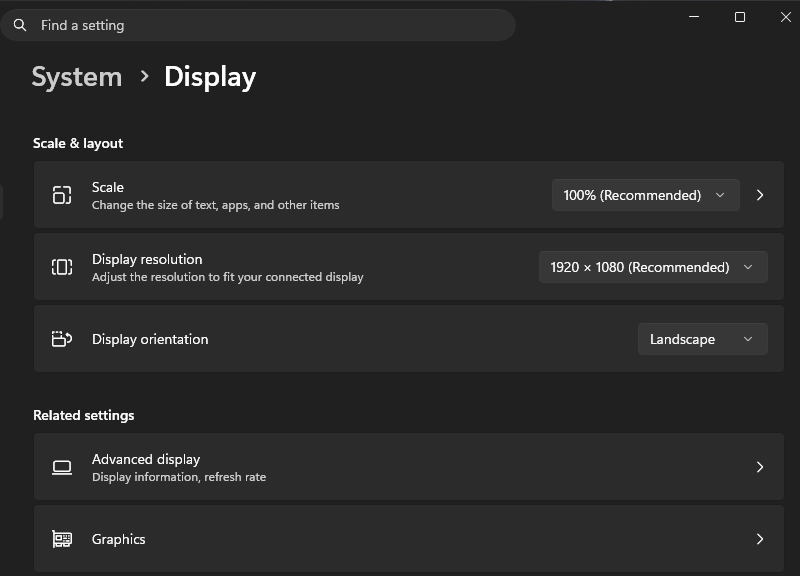
Open Settings > System > Display.
Under Scale, verify the current scaling percentage.
If the scaling is set above 100% or 125%, temporarily change it to 100% and test GibbsCAM.
Sign out and back into Windows if prompted.
Expected Result
Dialog text displays correctly without being clipped or overlapping.
Step 2 – Verify Display Resolution
Running Windows at a non-native display resolution can affect the GibbsCAM interface.
Open Settings > System > Display.
Under Display Resolution, select the display's Recommended resolution.
Restart GibbsCAM.
Expected Result
Windows uses the monitor's native resolution and dialog windows display correctly.
Step 3 – Verify Windows Text Size
Windows allows text to be enlarged independently of display scaling.
Open Settings > Accessibility > Text Size.
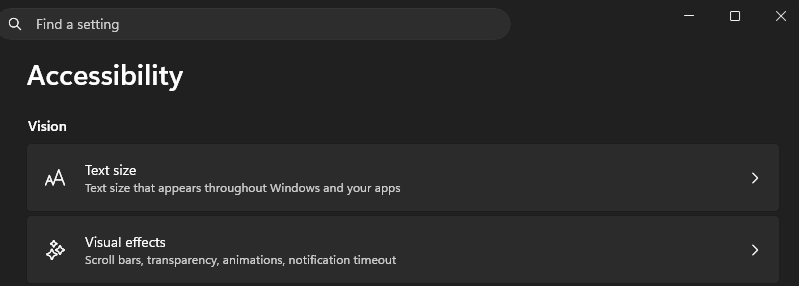
Verify that the text size slider is set to the default value.
Apply any changes and restart GibbsCAM.
Expected Result
Interface text returns to its expected size.
Step 4 – Reset GibbsCAM User Preferences
If only GibbsCAM is affected, the user interface preferences may be corrupted.
Close GibbsCAM.
Launch the Recovery Tool for your installed version from the Windows Start menu.
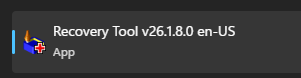
Alternatively, run the tool directly from:
C:\Program Files\Gibbs\GibbsCAM\<version>\Bin\Recovery Tool.exe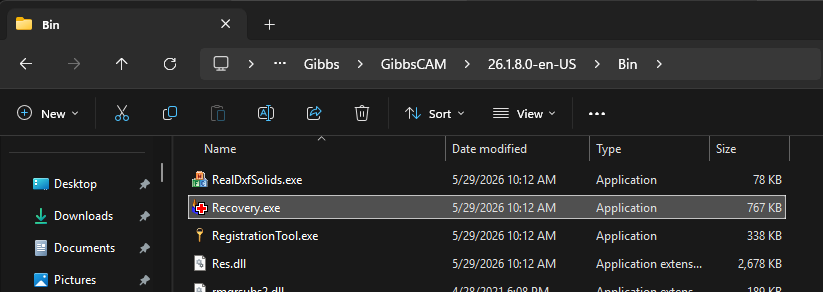
Restart GibbsCAM.
Note: The Recovery Tool resets GibbsCAM user preferences to their default settings.
Expected Result
Any corrupted interface settings are removed.
Step 5 – Verify Graphics Driver
Display rendering problems can occasionally be caused by outdated graphics drivers.
Determine whether the system is using an NVIDIA or AMD graphics adapter.
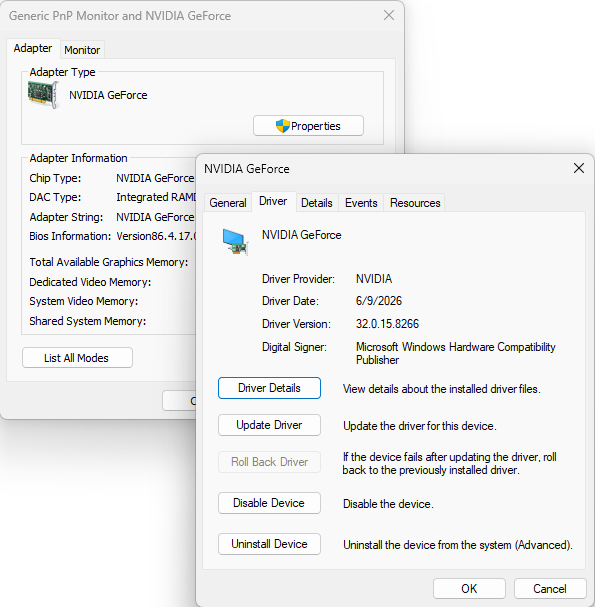
Download and install the latest graphics driver from the hardware manufacturer's website.
Restart Windows.
Expected Result
The display is rendered correctly.
Step 6 – Restart After Windows Updates
If the issue began after a Windows update:
Install any remaining Windows updates.
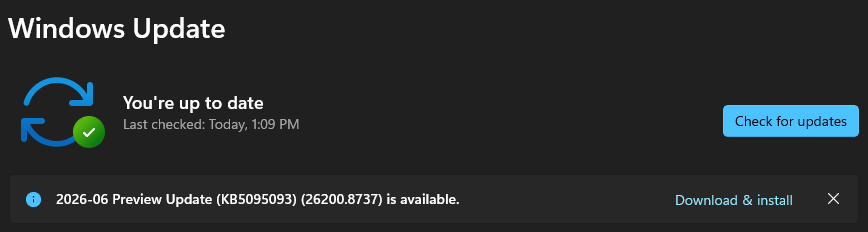
Restart the computer.
Launch GibbsCAM again.
Some Windows display changes are not fully applied until after a restart.
Expected Result
Windows display settings are fully applied.
Expected Result
Dialog windows display normally with all text, buttons, and controls fully visible and readable.
Additional Information
Common Causes
Text sizing and dialog display issues are most commonly caused by:
Windows display scaling above the recommended value.
Enlarged Windows text size.
Non-native display resolution.
Corrupted GibbsCAM user preferences.
Outdated graphics drivers.
Recent Windows updates requiring a restart.
Best Practices
Use the monitor's recommended native resolution.
Keep Windows display scaling at the recommended setting whenever possible.
Keep graphics drivers current.
Restart Windows after changing display settings.
Use the GibbsCAM Recovery Tool if only GibbsCAM is affected.
Note: High-DPI displays (such as 4K monitors) commonly use display scaling of 150% or higher. While Windows generally handles scaling correctly, some interface elements in desktop applications may not resize perfectly depending on the Windows version and display configuration.
Troubleshooting
Problem: Only GibbsCAM displays oversized or clipped text.
Possible Causes
Corrupted GibbsCAM preferences.
Resolution
Run the GibbsCAM Recovery Tool.
Problem: All Windows applications display oversized text.
Possible Causes
Windows display scaling.
Accessibility text size settings.
Resolution
Restore the recommended display scaling, text size, and screen resolution.
Problem: The issue began after connecting a different monitor or docking station.
Possible Causes
Windows automatically changed scaling or resolution.
Resolution
Verify the monitor's recommended resolution and scaling settings, then restart GibbsCAM.
Related Articles
Explore More from CAMCO
Visit the CAMCO website to learn more about:
Technical & Post Support
- Downloads & Helpful Resources
Keywords
Text Too Large, Dialog Window, Cut Off Text, Display Scaling, DPI Scaling, High DPI, Windows Scaling, Accessibility, Resolution, Interface, UI