
Summary
If GibbsCAM displays the error:
Unhandled Exception – Error in XML Document (0,0)
the application has encountered invalid or corrupted XML data while attempting to load a configuration or Intermediate Tooling file.
The most common cause is corrupted Intermediate Tooling data associated with one or more tools. Less commonly, corrupted user preferences, incomplete software updates, security software interference, or a damaged installation can cause the same error.
This article explains how to identify and remove corrupted Intermediate Tooling data and restore normal operation.
Table of Contents
Before You Begin
Important: Before making changes to your tooling library or user preferences, create a backup of your tooling files if they contain custom data.
Symptoms / Objective
You may experience one or more of the following:
GibbsCAM displays Unhandled Exception – Error in XML Document (0,0).
The error appears when opening a part.
The error occurs while editing tooling.
GibbsCAM crashes when loading a tool or Intermediate Tooling data.
Certain tooling definitions fail to load correctly.
Procedure
Step 1 – Inspect Intermediate Tooling Data
The most common cause of this error is a corrupted Intermediate Tooling block.
For each tool in the affected part:
Open the Tool dialog.
Open the Tool Setup Data window.
Inspect the Root node.
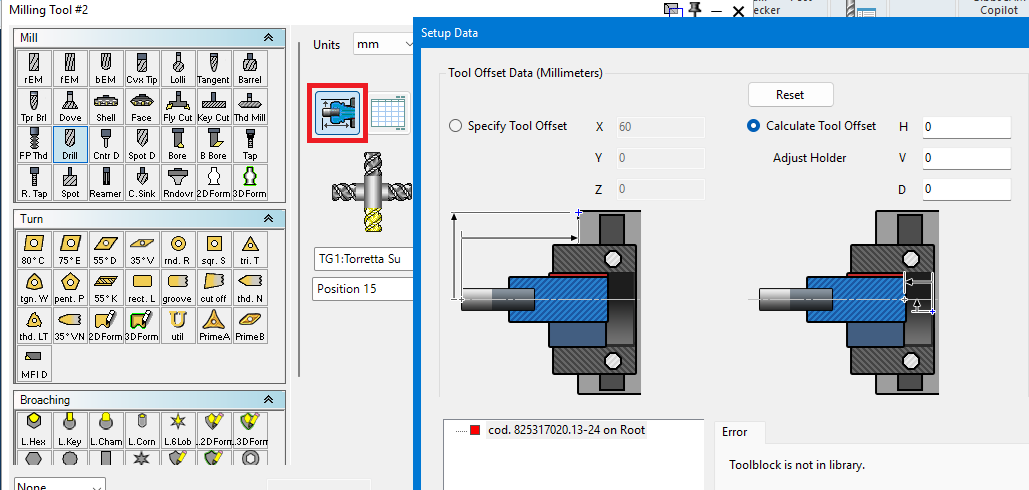
If the Root node appears red, the Intermediate Tooling data is corrupted.
Right-click the red Root node.
Select Remove.
Repeat this process for every tool in the part.
Save the part.
Expected Result
The corrupted Intermediate Tooling data is removed and the part opens without generating the XML error.
Step 2 – Remove Corrupted Intermediate Tooling Library Entries
If multiple parts exhibit the same behavior, the corruption may exist within the Intermediate Tooling library.
Open the Intermediate Tooling Library from Preferences.
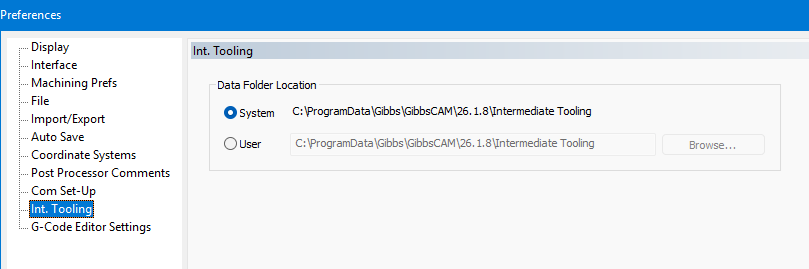
Locate the affected tooling blocks.
Remove the corrupted entries from the library.
If an entire tooling family is corrupted, the corresponding library folder may be removed and rebuilt if appropriate.
Note: Removing individual corrupted tooling blocks is preferred over deleting the entire library whenever possible.
Expected Result
Corrupted library entries are removed.
Step 3 – Run the GibbsCAM Recovery Tool
If the error continues after repairing the tooling data:
Close GibbsCAM.
Launch the Recovery Tool for your installed version from the Windows Start menu.
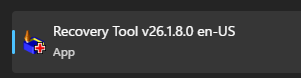
Alternatively, run the tool directly from:
C:\Program Files\Gibbs\GibbsCAM\<version>\Bin\Recovery Tool.exe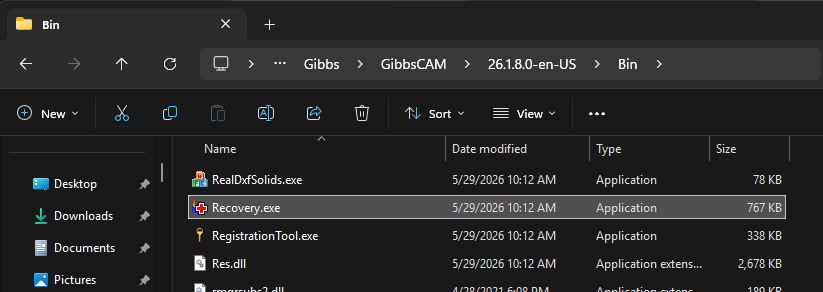
Allow the utility to reset the GibbsCAM user settings.
Restart GibbsCAM.
Expected Result
Corrupted user preference files are reset to their default values.
Step 4 – Verify Windows and GibbsCAM Are Current
Ensure the workstation is fully updated.
Install all available Windows updates.
Verify you are running the latest supported GibbsCAM build.
Restart the computer.
Expected Result
The latest software updates are installed.
Step 5 – Verify Security Software Is Not Interfering
Some endpoint security products may interfere with GibbsCAM configuration files.
If permitted by your organization's IT policies:
Temporarily disable antivirus or endpoint protection.
Test GibbsCAM.
Re-enable protection immediately after testing.
If the issue is resolved, configure appropriate exclusions for the GibbsCAM installation and user preference folders.
Expected Result
Configuration files load correctly.
Step 6 – Perform a Clean Reinstallation
If the problem persists:
Close GibbsCAM.
Delete the GibbsCAM User Preferences folder:
C:\Users\<username>\AppData\Roaming\Gibbs\GibbsCAM\<version>
Uninstall GibbsCAM.
Restart the computer.
Temporarily disable antivirus software if permitted.
Reinstall GibbsCAM.
Do not run the Migration Tool until the software has been verified to operate correctly.
Important: The Migration Tool can copy corrupted preference files into the new installation.
Expected Result
GibbsCAM starts with a clean configuration.
Expected Result
The corrupted XML data is removed or rebuilt, and GibbsCAM opens and operates without displaying the Unhandled Exception – Error in XML Document (0,0) message.
Additional Information
Common Causes
This error is most commonly caused by:
Corrupted Intermediate Tooling data.
Invalid XML configuration files.
Corrupted user preferences.
Damaged Intermediate Tooling library entries.
Interrupted software updates.
Security software preventing configuration files from being read or written.
Best Practices
Periodically back up custom tooling libraries.
Remove only the corrupted Intermediate Tooling blocks whenever possible.
Run the Recovery Tool before performing a complete reinstall.
Keep GibbsCAM and Windows fully updated.
Avoid migrating user preferences if configuration corruption is suspected.
Troubleshooting
Problem: Only one part generates the XML error.
Possible Causes
Corrupted Intermediate Tooling attached to that part.
Resolution
Inspect each tool and remove any Intermediate Tooling blocks whose Root node appears in red.
Problem: Multiple parts generate the same error.
Possible Causes
Corrupted Intermediate Tooling library.
Corrupted user preferences.
Resolution
Inspect the Intermediate Tooling library, remove corrupted entries, and run the GibbsCAM Recovery Tool.
Problem: The error persists after removing corrupted tooling.
Possible Causes
Damaged user preferences.
Corrupted installation.
Third-party software interference.
Resolution
Delete the User Preferences folder, reinstall GibbsCAM, and avoid running the Migration Tool until normal operation has been verified.
Related Articles
- How to Reset GibbsCAM to the Default Settings
- How to Transfer User Settings Between Workstations
- Troubleshooting GibbsCAM Crashes, Freezes, or Unexpected Closures
- Run Windows System File Checker (SFC) and DISM Repair
- How to Install GibbsCAM
Explore More from CAMCO
Visit the CAMCO website to learn more about:
Technical & Post Support
- Downloads & Helpful Resources
Keywords
Unhandled Exception, Error in XML Document (0,0), XML Error, Intermediate Tooling, Tool Setup Data, Corrupted Tool Library, Recovery Tool, User Preferences, Crash on Startup, XML Configuration