
Summary
This article explains how to create an Add G-Code utility process, enter or reuse raw machine code, place the resulting operation in the program sequence, and verify the posted output. Add G-Code content is limited to 4096 bytes and may also be subject to post-processor limits. Raw G-code is not validated or simulated by GibbsCAM.
Table of Contents
Before You Begin
Confirm the exact machine and control syntax that must be output. Use only code approved for the active machine, setup, and post processor.
Save a backup copy of the GibbsCAM part before adding or changing raw G-code.
Keep the Add G-Code content within 4096 bytes. The selected post processor may impose additional limits or formatting rules.
Plan the exact operation-list location where the code must be posted, including the modal state, active units, work offset, tool, spindle, coolant, and axis position at that point.
Important: GibbsCAM does not validate or simulate raw code entered through Add G-Code. Review the NC program and follow your normal machine prove-out and safety procedures before production use.
Procedure
Step 1 - Select the Add G-Code Process
Open the GibbsCAM part and locate the Process list.
Double-click an empty Process tile to open the Select Process Type dialog.
Expand Utility and select Add G-Code.
Confirm that the Add G-Code process dialog opens.
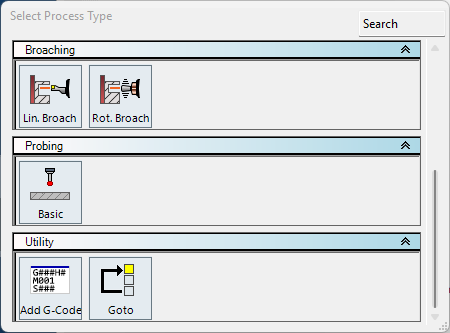
Figure 1 - Add G-Code is available in the Utility section of Select Process Type.
Step 2 - Enter the G-Code
Select the Format that corresponds to the intended control and post-processing workflow.
Click in the editor and type or paste the raw G-code exactly as it should be supplied to the post processor.
Enter an appropriate Time value when the operation should carry an estimated duration for GibbsCAM time reporting.
Check the content length and keep the entry within the 4096-byte Add G-Code limit and any smaller post-processor limit.
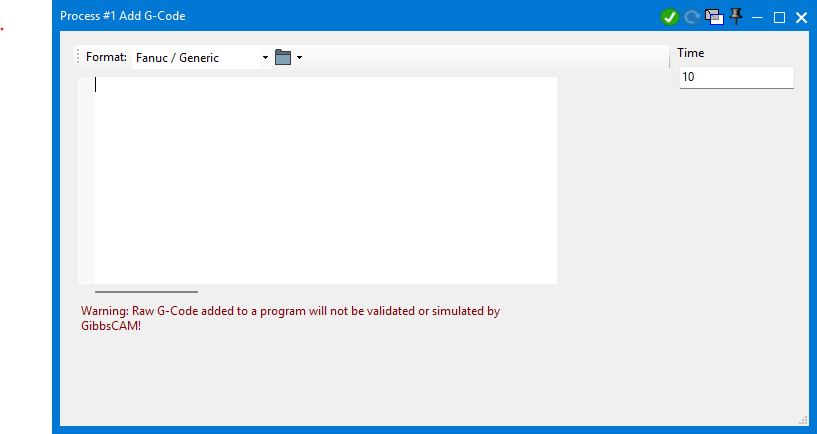
Figure 2 - Add G-Code dialog with Format, editor, Time, and the raw-code warning.
Step 3 - Insert or Save Reusable Code
To insert existing text, right-click inside the editor and select Insert File.
Browse to the source file and confirm that its contents appear at the intended cursor location.
To save a reusable snippet, select the desired text, right-click inside the editor, and select Save Selection.
Save the selection with a clear name and retain any required file extension or naming convention used by your workflow.
After inserting or editing content, recheck the byte limit, line breaks, comments, and all control-specific characters.
Step 4 - Create and Position the Operation
Review the Format, Time, and code one final time.
Click the green check mark to accept the process and create the Add G-Code operation.
Place the operation at the exact point in the operation sequence where the raw code must be output.
Confirm that the operations before and after Add G-Code establish the expected machine and control state.
Step 5 - Post and Verify the Result
Post the part with the approved post processor for the target machine.
Locate the inserted block in the NC program and confirm that it appears in the intended sequence.
Compare every posted line with the source text. Check for missing, changed, quoted, reformatted, or truncated content.
Verify the surrounding modal state, units, work offset, tool, spindle, coolant, and axis position before the raw code executes.
Run the standard NC review, simulation available outside the Add G-Code block, single-block or dry-run prove-out, and machine safety checks required by your organization.
Expected Result
An Add G-Code operation appears in the intended location in the GibbsCAM operation sequence. Posting outputs the approved raw-code block in the expected position without exceeding the GibbsCAM or post-processor limits, and the completed NC program has been manually reviewed and safely proved out.
Additional Information
The 4096-byte limit applies to the Add G-Code content. Plain ASCII characters normally use one byte each; other characters may use more than one byte, so control code should generally remain plain text.
A post processor can impose a smaller limit or apply its own formatting and output rules. Successful entry in the dialog does not guarantee that the post will accept or reproduce the text unchanged.
Insert File adds the contents of an existing file at the editor cursor. Save Selection writes the selected editor text to a file for later reuse.
For frequently reused Add G-Code processes, consider saving and loading a Process List after the code and post output have been verified.
If a code block is too large, divide it only when the post supports multiple Add G-Code operations and the split preserves the required control state and execution order.
Troubleshooting
Problem: Add G-Code is not visible in Select Process Type.
Possible Causes
The Utility section is collapsed or the process list is filtered.
The selected Process tile is not empty.
The current GibbsCAM installation, machine configuration, or process availability differs from the documented setup.
Resolution
Double-click an empty Process tile, clear any search filter, and expand Utility. If Add G-Code is still unavailable, verify the current GibbsCAM installation and machine configuration, then contact CAMCO Technical Support.
Problem: Insert File or Save Selection does not appear.
Possible Causes
The right-click occurred outside the code editor.
No text is selected when Save Selection is needed.
Resolution
Right-click inside the code editor. To use Save Selection, highlight the exact text first and then open the editor's context menu.
Problem: The posted code is missing, changed, quoted, or truncated.
Possible Causes
The Add G-Code content exceeds 4096 bytes.
The post processor has a smaller limit or applies formatting, filtering, or character rules.
The operation is inactive, suppressed, or placed somewhere other than the expected sequence position.
Resolution
Confirm that the operation is active and correctly positioned, reduce the content below all applicable limits, and repost. Compare the source and output line by line. If the post still changes or rejects the block, have the approved post developer review the post behavior.
Problem: Machine Simulation does not show the motion or effect of the inserted code.
Possible Causes
Raw G-code from Add G-Code is not validated or simulated by GibbsCAM.
Resolution
Treat this as expected behavior. Review the posted NC program directly, verify the machine state around the block, and follow the required single-block, dry-run, and machine prove-out procedures.
Related Articles
- How to Save and Load Process or Tool Lists
- Accurate Cut Time Calculation
- Error: "Fatal Post Error"
- How to Create a Pack and Go File
Explore More from CAMCO
Visit the CAMCO website to learn more about:
Keywords
Add G-Code, Raw G-Code, Utility Process, Insert File, Save Selection, 4096 Bytes, Post Processor, NC Program, Process Tile, G-Code Format, Operation Time, GibbsCAM