
Summary
Large GibbsCAM part files can take longer to save, open, and manipulate. A common cause is the history stored with solid and sheet bodies: every modeling action can retain parent bodies and earlier states so the model can be recreated or rebuilt.
After the model is final, clearing body history can substantially reduce the part-file size and improve responsiveness. This action is permanent for the affected body, so a recoverable copy must be saved first.
- Before You Begin
- Common Symptoms
- Procedure
- Additional File-Size Options
- Video Tutorial
- Best Practices
- Troubleshooting
- Related Articles
Before You Begin
Save and close any unrelated GibbsCAM parts before making file-size changes.
Create a backup or Save As copy of the part that still contains the complete body history.
Confirm that the solid model is final and that earlier modeling steps will not need to be recreated or rebuilt.
Review both the workspace and the Body Bag. Bodies stored in the Body Bag remain part of the file and can retain history.
Important: Clear History cannot be undone. Clearing history turns the selected solid or sheet into an atomic body and removes access to the earlier construction steps for that body.
Common Symptoms
The part file is much larger than comparable GibbsCAM files.
Saving or opening the part takes longer than expected.
Rotating, selecting, or manipulating solid bodies feels slow.
The file consumes excessive storage space or is difficult to transfer.
Procedure
Step 1 - Create a Recoverable Copy
Open the GibbsCAM part whose file size must be reduced.
Select File > Save As.
Save a clearly named backup that will retain the editable body history.
Continue working in a separate copy that will be optimized for normal use.
Step 2 - Identify Bodies with History
Select a solid or sheet body in the workspace.
Right-click the body and select Show History when the history must be reviewed before removal.
Repeat the review for other bodies that were created, transformed, sliced, rounded, combined, or otherwise modified.
Inspect the Body Bag for additional solids or sheets whose history is no longer required.
Step 3 - Clear the Body History
Select the finalized body or bodies whose history can be removed.
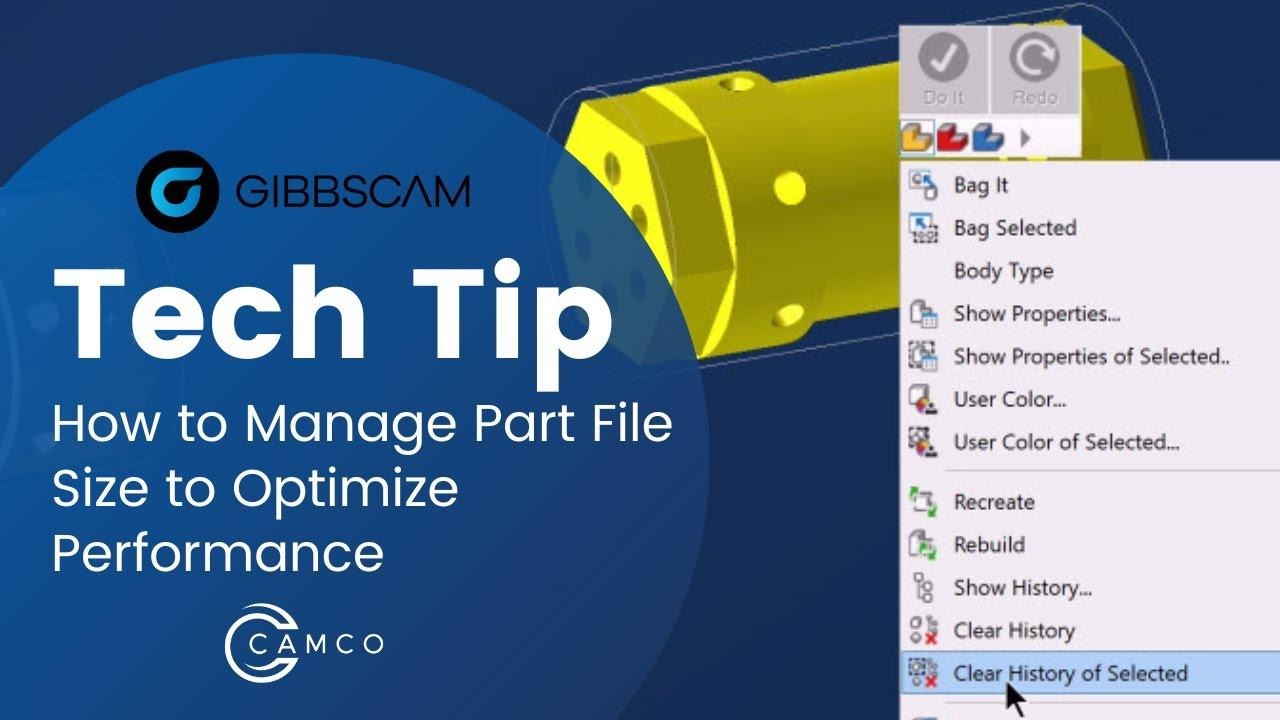
For one body, right-click it and select Clear History. For multiple selected bodies, use Clear History of Selected.
Confirm the action if GibbsCAM displays a warning.
Repeat the process for finalized bodies in the Body Bag or return them to the workspace temporarily if that makes selection easier.
Expected Result
The affected solid and sheet bodies remain available, but their construction history is removed and each cleared body is treated as an atomic body.
Step 4 - Save and Verify the Optimized File
Save the optimized GibbsCAM part.
Compare the saved file size with the backup copy that still contains body history.
Close and reopen the optimized part to confirm that it loads correctly.
Rotate the model, select the bodies, and recalculate or inspect critical operations to verify normal behavior.
Expected Result
The optimized part saves and opens normally with a smaller file size and improved model-navigation responsiveness. A separate backup remains available if the removed solid-model history is needed later.
Additional File-Size Options
Save without facets: Select File > Preferences > File and set Save Size to Minimal (without facets). This reduces the saved file size by omitting rendered facet data. GibbsCAM must regenerate those facets when the part is reopened, so opening the file may take longer.
Use a coarser chord height when appropriate: Chord Height in a body's properties controls display faceting. A coarser value can reduce facet density and memory use, but the rendered body may look less smooth. Verify visual quality before applying the change broadly.
Remove only truly unused content: Delete obsolete bodies, sheets, geometry, operations, or Body Bag contents only after confirming they are not required by machining, simulation, or future revisions.
Note: Clearing body history and saving without facets address different stored data. They can be used separately or together after the appropriate backup has been created.
Video Tutorial
Best Practices
Maintain one backup that preserves body history before creating an optimized copy.
Clear history only after the solid model is final and no earlier construction step must be edited.
Clear the history of every applicable body, including bodies stored in the Body Bag.
Save the file before comparing sizes; the file on disk does not change until the save is completed.
Use Minimal (without facets) when smaller storage size is more important than the fastest possible reopen time.
Use Pack and Go when sending the part to CAMCO Technical Support so the necessary supporting files are included.
Troubleshooting
Problem: The file size does not decrease after clearing history.
Possible Causes
The optimized part has not been saved since history was cleared.
Only one body was cleared while other workspace or Body Bag bodies still retain history.
Facet data or other complex part content remains stored in the file.
Resolution
Save the optimized file, then verify that history was cleared from every applicable body in both the workspace and Body Bag. If needed, test Minimal (without facets) in File Preferences and save again.
Problem: An earlier solid-modeling step can no longer be edited.
Possible Causes
History was cleared from the body, converting it into an atomic body.
The current file no longer contains the parent bodies or modeling actions required for Recreate or Rebuild.
Resolution
Open the backup copy that was saved before history was cleared. Make the required modeling change there, then create a new optimized copy after the model is final.
Problem: The part takes longer to open after its saved size is reduced.
Possible Causes
Save Size is set to Minimal (without facets).
GibbsCAM must regenerate display facets when the file is opened.
Resolution
Allow the facets to regenerate or change Save Size back to Large when faster opening is more important than minimizing the file on disk.
Problem: The file remains unusually large or slow after optimization.
Possible Causes
The part contains many complex bodies, high-density facets, large toolpaths, or unused content.
The file may have a part-specific problem that requires further review.
Resolution
Test a copy after removing confirmed unused content and reviewing chord height. If the behavior remains, create a Pack and Go file and provide it to CAMCO Technical Support with the original and optimized file sizes.
Related Articles
- How to Configure Autosave and Backup Files
- How to Create a Pack and Go File
- GibbsCAM Crashes When Saving a Part
Explore More from CAMCO
Visit the CAMCO website to learn more about:
Keywords
File Size, Clear History, Solid History, Atomic Body, Body Bag, Save without Facets, Chord Height