
Summary
The "General License Error" message typically occurs when the GibbsCAM Registration Tool is unable to save or replace the existing license file because Windows has denied write access to the license folder.
In most cases, the issue can be resolved by running the Registration Tool with Administrator privileges or by removing the existing license file before registering again.
Table of Contents
Cause
This error usually indicates that Windows prevented the Registration Tool from writing the new license file.
Common causes include:
Insufficient Windows permissions
The existing license file is read-only or locked
Security software is preventing the file from being replaced
The Registration Tool was not started with Administrator privileges
Resolution
Follow the steps below in order.
Step 1 – Run the Registration Tool as Administrator
Close the Registration Tool if it is already running.
Open the Windows Start menu.
Locate Registration Tool for the correct GibbsCAM version.
Right-click Registration Tool.
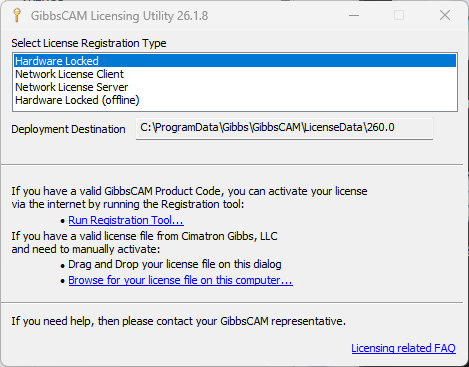
Select Run as administrator.
Complete the registration process again.
Step 2 – Remove the Existing License File
If running as Administrator does not resolve the problem, remove the existing license file and register again.
Close GibbsCAM and the Registration Tool.
Open File Explorer.
Browse to the license folder.
For older installations, the default location is:
C:\ProgramData\Gibbs\GibbsCAM\LicenseData\<version>
Note: The license storage folder may vary depending on the installed GibbsCAM version.
Locate the existing .lic file.
Rename it (recommended) or delete it.
Run the Registration Tool again as Administrator.
A new license file should be created automatically.
Step 3 – Verify Folder Permissions
If the error continues:
Verify that your Windows account has Modify permission for the license folder.
Confirm that the folder is not marked as Read-only.
If your organization manages permissions through Group Policy, contact your IT administrator.
Step 4 – Check Security Software
Some antivirus or endpoint protection software can prevent applications from modifying files in protected folders.
If permitted by your organization's IT policies:
Temporarily disable the security software during registration, or
Add the GibbsCAM license folder to the software's exclusion list.
After registration completes successfully, re-enable the security software.
Expected Result
The Registration Tool successfully creates or replaces the license file, and GibbsCAM launches without displaying the General License Error.
Troubleshooting
Problem: Running as Administrator Does Not Help
Cause
The existing license file may be locked or protected.
Resolution
Rename or remove the existing license file and run the Registration Tool again.
Problem: Access Is Denied
Cause
Your Windows account does not have sufficient permissions to modify the license folder.
Resolution
Run the Registration Tool as Administrator or contact your IT administrator to obtain the required permissions.
Problem: The Error Continues After Deleting the License File
Possible Causes
Security software is blocking file creation.
Folder permissions are incorrect.
Another application is locking the file.
Resolution
Restart the computer, verify folder permissions, temporarily disable security software if appropriate, and attempt registration again.
Best Practices
Always run the Registration Tool using an account with local Administrator privileges.
Avoid manually editing license files.
Rename the existing license file instead of deleting it whenever possible.
Keep antivirus and endpoint protection software up to date and configure appropriate exclusions if required.
Related Articles
- Online Registration Guide (Hardware-Locked Licenses)
- Offline Registration Guide (Hardware-Locked Licenses)
- Invalid Product Code Error During Registration
- Error: "Created License Has No Contents"
- How to Test the Connection Between an NLO Client and Server
- How to Update Your GibbsCAM License
Keywords
General License Error, Registration Tool, License File, Administrator, Run as Administrator, Permissions, Access Denied, LicenseData, License Registration, Windows Permissions, .lic File