
Summary
If the Next button is unavailable (grayed out) in the GibbsCAM Registration Tool, one or more required fields have not been completed or validated. Review the fields on the current page for missing or invalid information.
Table of Contents
Procedure
Step 1 – Verify the Product Code
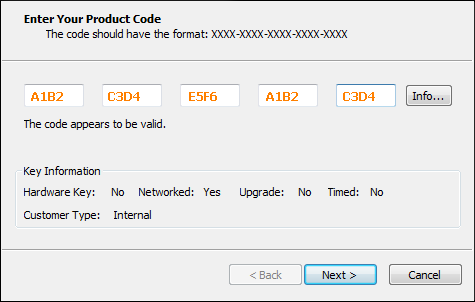
Enter your Product Code exactly as provided.
Check for:
Missing characters
Extra spaces
Typographical errors
Confusing similar characters (such as O and 0, or I and 1)
If you copied and pasted the Product Code, try entering it manually.
Step 2 – Complete All Required Fields
The Registration Tool requires all mandatory fields to be completed before continuing.
Verify that all required information has been entered, including:
Company Name
Contact Name
Email Address
Phone Number
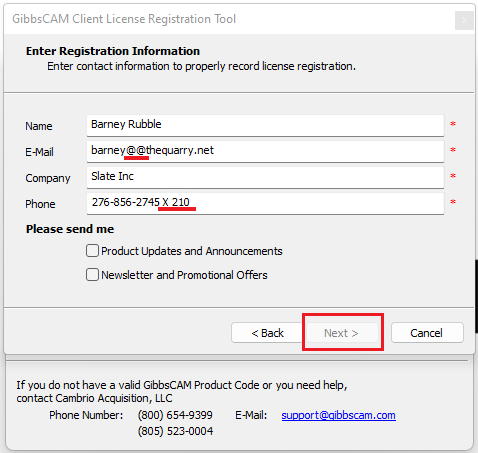
Fields marked as required must contain valid information before the Next button becomes available.
Step 3 – Verify Email Address and Phone Number Format
If an email address is required, ensure it is entered in a valid format.
Example:
name@example.com
222-333-4444
An incomplete or incorrectly formatted email address or phone number may prevent the Registration Tool from continuing. Do not include extensions with the phone number.
Step 4 – Run as Administrator
Close the Registration Tool.
Restart it using:
Run as administrator
Although administrator privileges are not normally required for registration, running the tool with elevated permissions can resolve some environment-specific issues.
Expected Result
The Next button becomes available after all required information has been entered and validated, allowing you to continue with the registration process.
Troubleshooting
Problem: Product Code Is Rejected
Possible Causes
Incorrect Product Code
Typographical error
Wrong Product Code for the license
Resolution
Verify the Product Code and try again. If necessary, refer to I Lost My Product Code.
Problem: Required Fields Are Already Filled In
Possible Causes
Values retained from previous registration
Resolution
Verify or re-enter the information and confirm that all required fields contain valid values.
Problem: Registration Tool Appears Frozen
Possible Causes
Windows display issue
Temporary application error
User interface problem
Resolution
Close and restart the Registration Tool. If the problem continues, restart Windows and try again.
Problem: The Next Button Is Still Disabled
If the Next button remains unavailable after completing all previous steps:
Verify that you are using the latest version of GibbsCAM.
Try running the Registration Tool on another computer if appropriate.
Contact CAMCO Support for assistance.
Best Practices
Copy the Product Code directly from your licensing documentation when possible.
Verify all required fields before clicking Next.
Keep your contact information current.
Use the latest supported version of the Registration Tool.
Save your Product Code and license information for future registrations.
Related Articles
- Online Registration Guide (Hardware-Locked Licenses)
- Offline Registration Guide (Hardware-Locked Licenses)
- I Lost My Product Code
- Unable to Connect to the GibbsCAM Activation Server
- Using the Activation Check Utility
- My License Is Missing Options
Keywords
Next Button Grayed Out, Next Button Disabled, Registration Tool, Cannot Continue, License Registration, Product Code, Activation, Registration Wizard, Licensing, RLM