
Summary
This article explains how to move a GibbsCAM Network License (NLO) Server to a different computer.
The procedure depends on whether your Network License is:
Hardware Key (USB) Locked, or
Keyless (Software Locked)
Review the appropriate section below before moving your server.
Table of Contents
- Determine Your License Type
- Moving a Hardware Key (USB) Network License Server
- Moving a Keyless Network License Server
- If a license.glc File Is Created
- Virtual Servers
- After Moving the Server
- Troubleshooting
- Best Practices
- Related Articles
Determine Your License Type
Before moving your server, determine which type of Network License you are using.
Hardware Key (USB) License
A USB hardware key is connected to the license server.
These licenses can be moved between computers by reinstalling the server software and reconnecting the hardware key.
Keyless License
No USB hardware key is present.
These licenses are locked to the hardware configuration and network adapter (MAC address) of the original server and must be reissued before they can be used on another computer.
Moving a Hardware Key (USB) Network License Server
Hardware key licenses are portable and may be moved to another supported server at any time.
Step 1 – Install the NLO Server Software
Install the current GibbsCAM Network License (NLO) Server software on the new server.
The latest installer and hardware key drivers are available from the GibbsCAM download portal https://online.gibbscam.com.
Step 2 – Connect the Hardware Key
Insert the Network License USB hardware key into the new server.
Install the hardware key drivers for your key type.
See: Installing Hardware Key Drivers
Step 3 – Register the Server
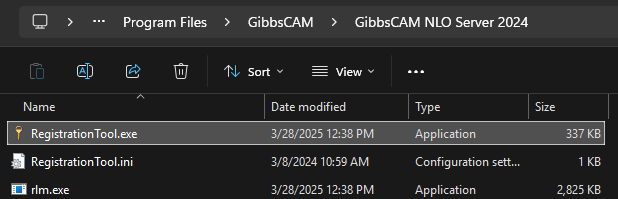
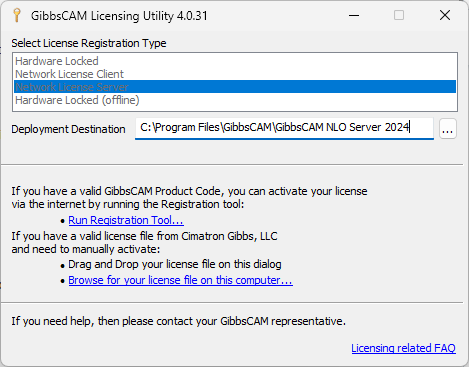
Run RegistrationTool.exe from the Network License Server installation folder.
C:\Program Files\GibbsCAM\GibbsCAM NLO Server 2024
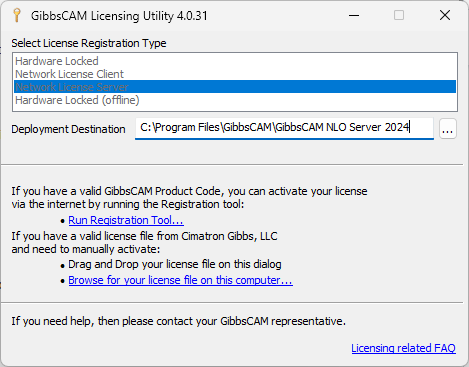
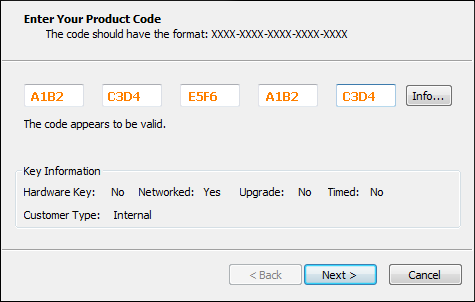
Enter your Product Code.
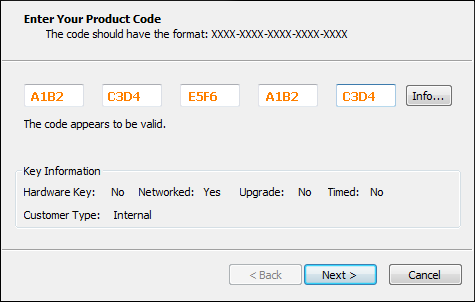
Fill in all required fields.
Finish the registration.
If the server can communicate with the GibbsCAM Activation Service, a new .lic license file is generated automatically.
Step 4 – Verify the License File
After registration, verify that a new .lic license file has been created in the deployment folder specified during registration.
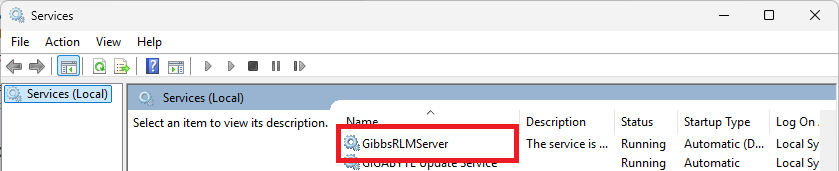
If registration succeeds, start the GibbsRLMServer service and verify that clients can obtain licenses.
Step 5 – Reactivate Clients with New Server License
This can be done either by:
Running the Registration Tool on the workstation computers to generate a new license file
Copying the license file from the new server and deploying it on the workstations.
If a license.glc File Is Created
If the Registration Tool creates a file named:
license.glc
instead of a .lic file, the server was unable to communicate with the GibbsCAM Activation Service.
The .glc file is not a license file.
Submit the generated file to support@camco-ne.com for manual processing. After the request has been processed, you will receive a valid .lic license file that can be installed on the server.
Moving a Keyless Network License Server
Keyless Network Licenses are locked to the original server hardware.
Because of this, they cannot simply be copied to another server.
To move a keyless Network License:
Step 1 – Submit a Server Change Request
Complete THIS FORM
Send the completed form to the CAMCO Support at:
support@camco-ne.com.Wait for the reply indicating the change has been completed.
Step 2 – Install the NLO Server Software
Install the current GibbsCAM Network License (NLO) Server software on the new server.
The latest installer is available from the GibbsCAM download portal https://online.gibbscam.com.
Step 3 – Register the Server
Run RegistrationTool.exe from the Network License Server installation folder.
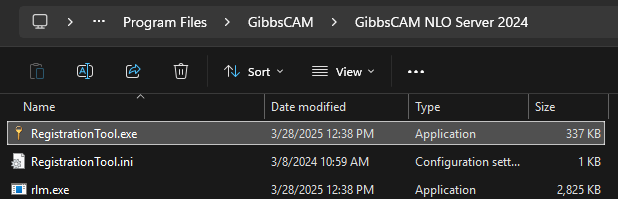
Enter your Product Code.
Complete the registration process and click Finish.
If the server can communicate with the GibbsCAM Activation Service, a new .lic license file is generated automatically.
Step 4 – Verify the License File
After registration, verify that a new .lic license file has been created in the deployment folder specified during registration.
If registration succeeds, start the GibbsRLMServer service and verify that clients can obtain licenses.
Step 5 – Shut Down the Old Server
After verifying the new server is running, shut down the previous server to prevent conflicts.
Step 6 – Reactivate Clients with New Server License
This can be done either by:
Running the Registration Tool on the workstation computers to generate a new license file
Copying the license file from the new server and deploying it on the workstations.
If a license.glc File Is Created
If the Registration Tool creates a file named:
license.glc
instead of a .lic file, the server was unable to communicate with the GibbsCAM Activation Service.
The .glc file is not a license file.
Submit the generated file to support@camco-ne.com for manual processing. After the request has been processed, you will receive a valid .lic license file that can be installed on the server.
Virtual Servers
If you plan to install the Network License Server on a virtual machine:
Virtual environments typically require a hardware key-based license.
USB hardware keys may require USB passthrough support from the virtualization platform.
If you are unsure whether your virtual environment is supported, contact CAMCO before migrating the server.
After Moving the Server
After the new server is operational:
Verify that the GibbsRLMServer service is running.
Confirm that client computers can obtain licenses.
Update any client configuration files if the server hostname or IP address has changed.
Verify firewall rules if clients cannot connect.
Expected Result
The Network License Server is successfully installed on the new server, clients connect normally, and licenses are issued without interruption.
Troubleshooting
Problem: Clients Cannot Connect to the New Server
Possible Causes
Incorrect server name
Firewall blocking communication
Client still configured for the old server
GibbsRLMServer service not running
Resolution
Verify the server hostname, firewall configuration, and client license configuration.
Problem: Registration Creates license.glc Instead of .lic
Cause
The server cannot communicate with the GibbsCAM Activation Service.
Resolution
Submit the generated .glc file to GibbsCAM for manual processing and install the returned .lic file.
Problem: Keyless License Will Not Activate
Cause
Keyless licenses are locked to the original server hardware.
Resolution
Contact GibbsCAM to have the license transferred to the replacement server.
Problem: Moving to a Virtual Machine
Possible Causes
Unsupported virtualization platform
No USB passthrough
Incorrect license type
Resolution
Verify virtualization compatibility and licensing requirements before deploying the Network License Server.
Best Practices
Back up your existing license files before moving the server.
Record the current server hostname and IP address.
Use a static hostname or static IP address whenever possible.
Test license checkout from a client workstation before placing the new server into production.
Keep the original server available until the new server has been verified.
Related Articles
- Network License (NLO) Server Setup
- Using the Activation Check Utility
- Unable to Connect to the GibbsCAM Activation Server
- How to Use Roaming Licenses
- How to Track NLO Usage
- Installing Hardware Key Drivers
Keywords
Move NLO Server, Change License Server, Replace License Server, Network License, RLM, Reprise License Manager, Hardware Key, Keyless License, Floating License, Server Migration, License.glc, License Transfer