
Summary
This error indicates that the GibbsCAM Registration Tool successfully communicated with the GibbsCAM Activation Server, but the server was unable to generate a license because no licensed products were associated with the entered Product Code.
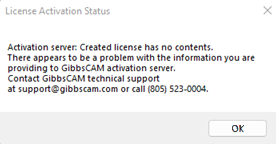
In most cases, this is caused by an incorrect Product Code, an order that has not yet been processed, or a license that has not yet been activated.
Table of Contents
Cause
This message indicates that the Registration Tool successfully contacted the GibbsCAM Activation Server.
However, the Activation Server could not generate a license because there is no valid license associated with the Product Code and software version that was submitted.
Common causes include:
An incorrect Product Code was entered.
The NLO server’s license file has not been activated or updated yet.
The Product Code has not yet been processed by Sales.
The Product Code has expired or is no longer active.
The Product Code is not valid for the selected license type.
Resolution
Follow the steps below.
Step 1 – Verify the Product Code
Carefully verify that the Product Code entered into the Registration Tool matches the code supplied with your order.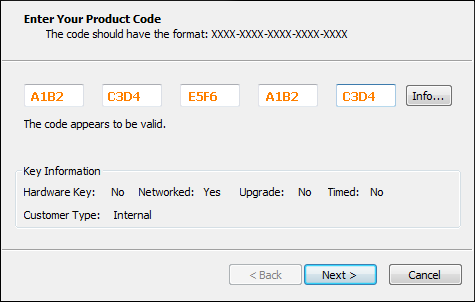
Common issues include:
Typographical errors
Missing or extra characters
Using an older Product Code from a previous version
Confusing similar characters such as 0 (zero) and O (letter O)
If available, copy and paste the Product Code instead of typing it manually.
Step 2 – Confirm the License Has Been Processed
If the Product Code is correct but the error persists, your license may not yet be available on the Activation Server.
This can occur when:
A new order has not yet been processed.
Maintenance or subscription has recently been renewed.
Additional license options have recently been purchased.
Your reseller has not yet completed the licensing request.
If the purchase was made recently, allow sufficient time for the licensing system to be updated.
Step 3 – Verify the Correct License Type
Ensure you are registering the correct type of license.
Examples include:
Standalone Hardware Key
Network License (NLO)
Using the wrong Product Code for the selected registration type may prevent a license from being generated.
Step 4 – If Using an NLO License, Update the Server's License File
Go to your server computer
Run the Registration Tool.exe located in:
C:\Program Files\GibbsCAM\GibbsCAM NLO Server 2024Complete the Registration Tool.
Confirm deployment of a new .lic file.
Retry on the workstation or copy the server’s new .lic to deploy directly on the client.
See: Network License (NLO) Server Setup
Step 5 – Contact CAMCO Support
If the Product Code is correct and the order has already been processed, contact CAMCO Support.
Be prepared to provide:
Product Code
Company name
Serial number (if applicable)
Hardware key number (if applicable)
A screenshot of the error message
Support can verify whether the Product Code has been activated and whether licensed features are assigned correctly.
Expected Result
Once a valid Product Code with licensed products is available on the GibbsCAM Activation Server, the Registration Tool successfully generates a license file and completes the registration process.
Troubleshooting
Problem: The Registration Tool Connect Successfully but No License Is Created
Cause
The Activation Server found no licensed products associated with the Product Code.
Resolution
Verify the Product Code and confirm that the license has been processed.
Problem: This Is a New Purchase
Cause
The licensing information may not yet have been entered into the licensing system.
Resolution
Wait until your order has been processed or contact your reseller for a status update.
Problem: I Recently Added License Options
Cause
The updated license may not yet be available.
Resolution
Verify that the license update has been completed before attempting registration again.
Problem: The Product Code Is Correct but the Error Continues
Cause
The Product Code may require review by CAMCO or your reseller.
Resolution
Contact CAMCO Support and provide the Product Code and registration details for further investigation.
Best Practices
Copy and paste Product Codes whenever possible.
Verify the Product Code before beginning registration.
Confirm that new purchases or renewals have been processed before registering.
Keep your original licensing documentation for future reference.
Related Articles
- Online Registration Guide (Hardware-Locked Licenses)
- Offline Registration Guide (Hardware-Locked Licenses)
- Network License (NLO) Server Setup
- Invalid Product Code Error During Registration
- How to Test the Connection Between an NLO Client and Server
- What Options are on my GibbsCAM License?
- How to Update Your GibbsCAM License
Keywords
Created License Has No Contents, Registration Tool, Product Code, License Registration, Activation Server, License Creation, Hardware Key, Network License, NLO, License Error