
Summary
If a GibbsCAM part file (.VNC) becomes corrupted or cannot be opened, recovery may still be possible depending on how the corruption occurred.
This article explains the available recovery methods, including recovering from a temporary .ZOOB file, backup files, Autosave, and Windows backups.
Important: Before attempting any recovery, make a copy of the original file and perform all recovery attempts using the copy. This preserves the original in case additional recovery methods are needed.
Table of Contents
TABLE OF CONTENTS
- Recovery Method 1 – Recover from a .ZOOB File
- Recovery Method 2 – Restore a Backup File
- Recovery Method 3 – Restore an Autosave File
- Recovery Method 4 – Restore a Previous Version
- Recovery Method 5 – Submit the File for Review
- Preventing Future Data Loss
- Troubleshooting
- Best Practices
- Related Articles
Symptoms
You may experience one or more of the following:
A .VNC file will not open.
GibbsCAM reports that the file is corrupted.
GibbsCAM crashes when opening a specific part.
A part file is missing after a failed save.
Only a .ZOOB file remains in the folder.
Recovery Method 1 – Recover from a .ZOOB File
If the save process was interrupted, you may find a file with the extension:
.ZOOB
This is a temporary file created while GibbsCAM saves a part.
To attempt recovery:
Make a copy of the .ZOOB file.
Rename the copy so the extension becomes:
.VNC
Open the renamed file in GibbsCAM.
If the save had progressed far enough before it was interrupted, the part may open successfully.
Recovery Method 2 – Restore a Backup File
If Backup Files were enabled in File>Preferences before the problem occurred, look in the same folder as the original part file for a backup copy.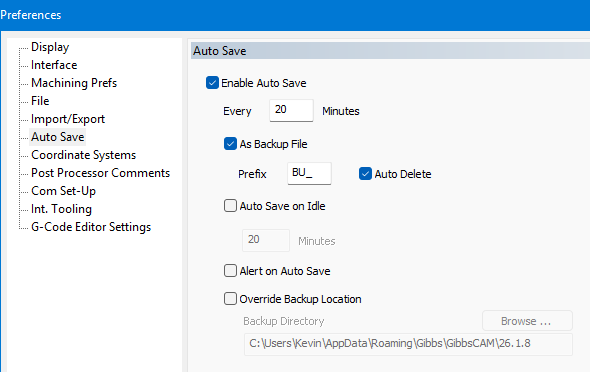
If one is available:
Make a copy of the backup.
Rename it if necessary.
Open it in GibbsCAM.
You may lose some recent changes, but the majority of your work may still be recoverable.
Recovery Method 3 – Restore an Autosave File
If Autosave in File>Preferences was enabled, check for an Autosave version of the part.
Autosave files are intended to help recover work after:
Unexpected shutdowns
Power failures
System crashes
Software crashes
If an Autosave version is available, open it and immediately save it as a new part file.
Recovery Method 4 – Restore a Previous Version
If the part was stored in one of the following locations, you may be able to restore an earlier version:
OneDrive
SharePoint
Dropbox
Windows File History
Company backup systems
Consult your IT department if your organization maintains automatic file backups.
Recovery Method 5 – Submit the File for Review
If none of the recovery methods are successful:
Make a copy of the damaged file.
Do not continue editing or attempting repairs on the original.
Contact CAMCO Support.
Provide:
The damaged .VNC file
Any .ZOOB files
Backup or Autosave files (if available)
A description of what occurred before the file became corrupted
Although recovery cannot be guaranteed, Support may be able to determine whether the file is partially recoverable.
Expected Result
The part is successfully recovered from a .ZOOB, backup, Autosave, or previous version, allowing work to continue with minimal data loss.
Preventing Future Data Loss
To reduce the risk of losing work:
Enable Autosave.
Enable Backup Files.
Save frequently while working.
Keep regular backups of important projects.
Avoid shutting down Windows while GibbsCAM is saving.
Verify that antivirus or endpoint security software is not blocking GibbsCAM from writing files.
When saving to a network location, ensure the connection remains stable throughout the save process.
Troubleshooting
Problem: The .ZOOB File Will Not Open
Cause
The save operation may have been interrupted before enough data was written to create a valid part.
Resolution
Attempt recovery using a backup or Autosave file. If none are available, contact CAMCO Support.
Problem: The Part Crashes GibbsCAM When Opening
Cause
The part file may contain corrupted data.
Resolution
Attempt to recover using an earlier backup or Autosave copy. If the problem persists, submit the file to CAMCO Support.
Problem: No Backup or Autosave Files Exist
Cause
These features may not have been enabled before the corruption occurred.
Resolution
Attempt recovery from a .ZOOB file or from your organization's backup system.
Best Practices
Enable Autosave for all users.
Enable Backup Files to retain previous versions of your work.
Save frequently during long programming sessions.
Maintain routine backups of important part files.
Avoid forcing GibbsCAM to close while files are being saved.
Related Articles
- What Is a .ZOOB File?
- Troubleshooting GibbsCAM Crashes, Freezes, or Unexpected Closures
- File Preview Is Not Working in Windows Explorer
- Run Windows System File Checker (SFC) and DISM Repair
- How to Reset GibbsCAM to the Default Settings
Keywords
Corrupted File, Recover File, Recovery, Autosave, Backup File, ZOOB, VNC, Cannot Open, File Corruption, Part Recovery, Recover Part, Damaged File, Data Recovery