
Summary
If GibbsCAM crashes with Exception Code: 0xC0000005, Windows has detected an Access Violation, meaning the application attempted to read from or write to a protected area of memory.
This error is not unique to GibbsCAM and is generated by Windows. It is commonly caused by corrupted Windows system files, incompatible or damaged DLL files, faulty or outdated device drivers, memory issues, or third-party software interfering with the application.
This article provides recommended troubleshooting steps to resolve the error.
Table of Contents
Procedure
Step 1 – Run Windows System File Checker (SFC)
Corrupted Windows system files are one of the most common causes of access violation errors.
Open the Start menu.
Search for Command Prompt.
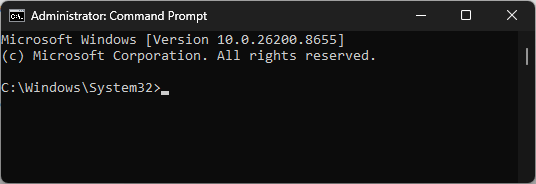
Right-click Command Prompt and select Run as administrator.
Enter the following command:
sfc /scannow
Allow the scan to complete.
Restart the computer if any files were repaired.
If SFC reports that it could not repair all files, run the DISM repair process described in the related Windows System File Checker (SFC) and DISM Repair article.
Expected Result
Windows repairs any corrupted operating system files.
Step 2 – Install Windows Updates
Microsoft regularly releases updates that correct operating system bugs and compatibility issues.
Open Settings > Windows Update.
Select Check for Updates.
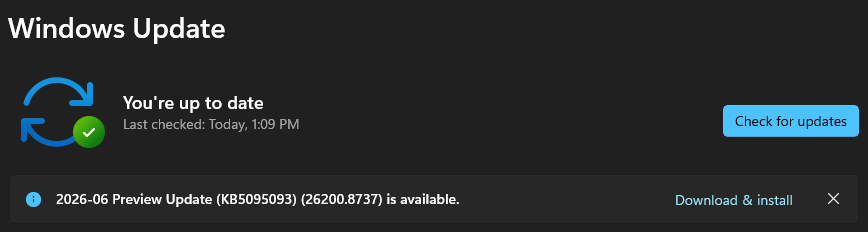
Install all available updates.
Restart the computer.
Repeat until Windows reports that no additional updates are available.
Expected Result
Windows is fully updated.
Step 3 – Update Device Drivers
Outdated graphics and chipset drivers can trigger access violation errors.
Verify that the latest drivers are installed for:
Graphics adapter (NVIDIA or AMD)
Chipset
Storage controller (if applicable)
Download drivers directly from the hardware manufacturer's website whenever possible.
Expected Result
The system is running current hardware drivers.
Step 4 – Run the GibbsCAM Recovery Tool
If the problem only occurs in GibbsCAM:
Close GibbsCAM.
Open the Windows Start menu.
Launch the Recovery Tool for your installed version from the Windows Start menu.

Alternatively, run the tool directly from:
C:\Program Files\Gibbs\GibbsCAM\<version>\Bin\Recovery Tool.exe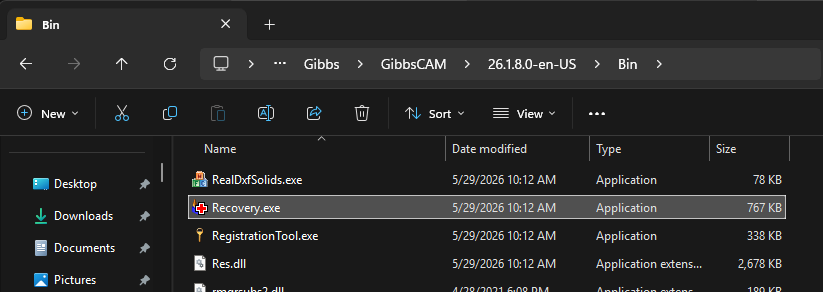
Restart GibbsCAM.
Note: The Recovery Tool resets GibbsCAM user preferences to their default settings.
Expected Result
Corrupted GibbsCAM preference files are removed as a possible cause.
Step 5 – Test System Memory
Although less common, defective RAM can produce access violation errors.
Run Windows Memory Diagnostic or your organization's preferred hardware diagnostic utility.
If memory errors are reported, replace the affected memory module before continuing.
Expected Result
System memory passes diagnostic testing without errors.
Step 6 – Repair or Reinstall GibbsCAM
If the error continues:
Repair the GibbsCAM installation using Apps & Features or Programs and Features.

Modify > RepairIf necessary, uninstall GibbsCAM.
Restart Windows.
Reinstall the latest supported version.
Do not migrate user settings until you have verified that the new installation starts correctly.
Expected Result
GibbsCAM launches and operates normally.
Expected Result
GibbsCAM operates normally without generating Exception Code: 0xC0000005.
Additional Information
What Is Exception Code 0xC0000005?
Exception Code 0xC0000005 is a Windows Access Violation exception.
It indicates that Windows prevented an application from accessing protected memory. The exception itself does not identify the root cause—it only indicates that Windows detected an invalid memory access.
Common Causes
Possible causes include:
Corrupted Windows system files.
Outdated or incompatible device drivers.
Corrupted application files.
Faulty RAM.
Third-party antivirus or endpoint security software.
Corrupted Windows user profiles.
Hardware instability or overclocking.
Note: Although older troubleshooting procedures sometimes recommend unregistering and re-registering ntdll.dll, this is not recommended on modern versions of Windows. ntdll.dll is a protected operating system component managed by Windows Resource Protection. Running SFC and DISM is the supported Microsoft method for repairing system DLLs.
Best Practices
Keep Windows fully updated.
Install graphics drivers directly from NVIDIA or AMD.
Avoid unnecessary DLL replacement utilities.
Regularly verify Windows health using SFC and DISM.
Keep GibbsCAM updated to the latest supported release.
Troubleshooting
Problem: The error only occurs in GibbsCAM.
Possible Causes
Corrupted GibbsCAM preferences.
Damaged installation files.
Resolution
Run the Recovery Tool. If necessary, repair or reinstall GibbsCAM.
Problem: The error occurs in multiple applications.
Possible Causes
Corrupted Windows installation.
Faulty RAM.
Driver conflicts.
Resolution
Run SFC, DISM, Windows Memory Diagnostic, and update hardware drivers.
Problem: The error began after installing new hardware or drivers.
Possible Causes
Driver incompatibility.
Resolution
Roll back or reinstall the affected driver and verify system stability.
Related Articles
- Run Windows System File Checker (SFC) and DISM Repair
- Troubleshooting GibbsCAM Crashes, Freezes, or Unexpected Closures
- Error: "The instruction at 0x00007FF... referenced memory at 0x00000000..."
- Error: "Out of Memory"
- Hardware and System Requirements
Explore More from CAMCO
Visit the CAMCO website to learn more about:
Technical & Post Support
- Downloads & Helpful Resources
Keywords
0xC0000005, Exception Code 0xC0000005, Access Violation, Application Error, Crash, Windows Exception, Memory Access Violation, SFC, DISM, Windows Memory Diagnostic