
Summary
If you've lost your GibbsCAM Product Code, don't worry—your license can usually be recovered.
This article explains where to look for your Product Code, when it is required, and what information to gather before contacting CAMCO for assistance.
Table of Contents
- Where to Look for Your Product Code
- Retrieve the Product Code from Your License File
- If You Cannot Locate Your Product Code
- Troubleshooting
- Best Practices
- Related Articles
What Is a Product Code?
A Product Code is a unique identifier associated with your GibbsCAM license.
It is typically required when:
Registering GibbsCAM for the first time
Updating an existing license
Installing GibbsCAM on a replacement computer
Activating a Network License (NLO) server
Contacting CAMCO regarding licensing questions
Your Product Code is different from your license file and should be stored in a secure location for future reference.
Where to Look for Your Product Code
Before contacting CAMCO, check the following locations:
Original order confirmation or purchase documentation
License or registration email
Internal software inventory or asset management records
Documentation provided by your IT department
Records maintained by your GibbsCAM administrator
Previous installation notes or deployment documentation
The installed GibbsCAM license (.lic) file (open the file in a text editor and locate the PCODE entry near the beginning of the file)
If your organization has multiple GibbsCAM licenses, verify that you are using the correct Product Code for the installation you are working with.
Retrieve the Product Code from Your License File
If GibbsCAM is already licensed and you have access to the current license (.lic) file, you can often retrieve the Product Code directly from the file.
Locate your GibbsCAM license file (.lic).
Right-click the file and select Open with > Notepad (or another plain text editor).
Review the first few lines of the file.
Locate the entry beginning with PCODE.
For example:
HOST SERVERNAME ...
ISV gibbs ...
PCODE=(CID#)- ABCD-1234-EFGH-5678
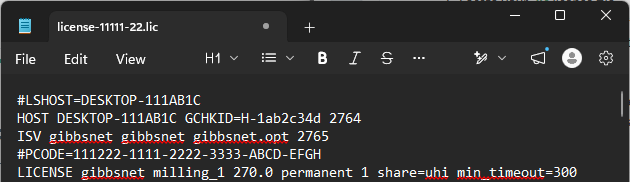
The 5-digit value following PCODE is your Customer ID Number (CID), and the 5 sets for 4-digits following the CID# is your GibbsCAM Product Code.
Note: Do not edit or save changes to the license (.lic) file. Modifying the file may invalidate the license and prevent GibbsCAM from starting.
If you cannot locate a .lic file or the PCODE entry is not present, contact CAMCO Support for assistance.
If GibbsCAM Is Already Installed
If your current installation is functioning correctly, you may not need the Product Code immediately.
However, you should recover and document it before:
Reinstalling Windows
Replacing the computer
Updating your license
Moving to a new workstation
Installing an NLO server
If You Cannot Locate Your Product Code
If you are unable to locate your Product Code, contact CAMCO Support.
To help identify your license, have as much of the following information available as possible:
Company name
Contact name
Email address
Phone number
GibbsCAM version
License type (Hardware-Locked or Network License)
Hardware key number (if applicable)
Approximate purchase date
Providing complete information can help reduce the time required to locate your licensing records.
Troubleshooting
Problem: I Can't Find Any Purchase Records
Resolution
Contact CAMCO with your company information and any available licensing details. Additional verification may be required before licensing information can be provided.
Problem: The Product Code Is Rejected During Registration
Possible Causes
Typographical error
Incorrect Product Code
Product Code from a different license
Expired or superseded registration information
Resolution
Carefully verify the Product Code and retry the registration. If the problem continues, contact CAMCO Support.
Problem: Our Company Has Multiple Product Codes
Resolution
Confirm that you are using the Product Code associated with the specific workstation, hardware key, or Network License server you are registering.
Problem: We Recently Changed Company Names
Resolution
Provide both the previous and current company names when contacting CAMCO, along with any additional licensing information that may help identify your records.
Best Practices
Store your Product Code in a secure location.
Keep a copy with your software licensing records.
Document Product Codes for each hardware key or Network License server.
Record the Product Code before replacing computers or reinstalling Windows.
Maintain current licensing contacts within your organization.
Related Articles
- Online Registration Guide (Hardware-Locked Licenses)
- Offline Registration Guide (Hardware-Locked Licenses)
- Network License (NLO) Server Setup
- How to Update Your GibbsCAM License
- My License Is Missing Options
- License Showing the Wrong Expiration Date
- Using the Activation Check Utility
Keywords
Lost Product Code, Recover Product Code, Find Product Code, Registration, License Registration, License Recovery, Product Key, License Activation, Hardware-Locked License, Network License, RLM, Licensing