
Summary
If you receive a GLM Utilities Error while running the GibbsCAM Registration Tool, one or more licensing utilities were unable to complete the registration process.
This article explains the most common causes of this error and provides steps to resolve it.
Table of Contents
Cause
The GLM Utilities Error generally indicates that one of the licensing components required during registration was unable to complete successfully.
Common causes include:
Insufficient Windows permissions
Security software blocking the licensing utilities
Corrupted GibbsCAM installation files
Damaged or missing licensing components
Hardware key driver problems (for hardware key licenses)
Communication issues with the GibbsCAM Activation Service
Resolution
Follow the steps below in order.
Step 1 – Run the Registration Tool as Administrator
Close the Registration Tool.
Open the Windows Start menu.
Locate Registration Tool.
Right-click the application.
Select Run as administrator.
Attempt the registration again.
Step 2 – Verify Security Software
Some antivirus or endpoint protection software may prevent the licensing utilities from running.
Temporarily disable or create exclusions for:
GibbsCAM installation folder
Registration Tool
Licensing utilities
RLM components
If your organization manages security software centrally, contact your IT department before making changes.
Step 3 – Verify Hardware Key Driver (Standalone Hardware Key Licenses)
If you are using a USB hardware key:
Confirm the hardware key is connected.
Verify Windows detects the device.
Install or update the appropriate Sentinel or HASP driver if necessary.
If Windows does not recognize the hardware key, registration may fail.
Step 4 – Verify Internet Connectivity
For online registration:
Confirm the computer has Internet access.
Verify firewalls or proxy servers are not blocking communication with the GibbsCAM Activation Service.
If Internet access is restricted, use the Offline Registration process instead.
Step 5 – Repair or Reinstall GibbsCAM
If the licensing utilities are damaged:
Uninstall GibbsCAM.
Restart Windows.
Download the latest installer.
Reinstall GibbsCAM.
Run the Registration Tool again.
Step 6 – Test the Activation Service
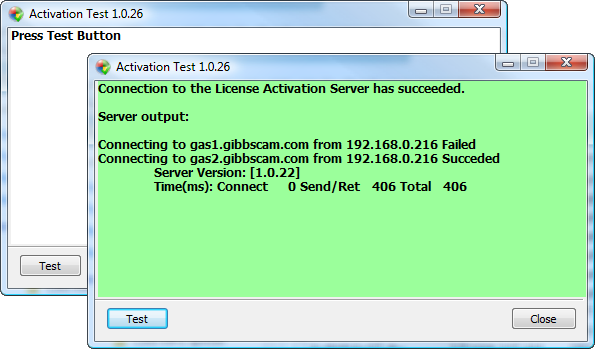
Run the ActivationCheck.exe utility included with GibbsCAM to verify communication with the GibbsCAM Activation Service.
If the connectivity test fails, resolve the network issue before attempting registration again.
If the Problem Persists
If the GLM Utilities Error continues after completing the steps above, gather the following information before contacting CAMCO Support:
GibbsCAM version
Windows version
Screenshot of the error message
Registration Tool log files (if available)
Existing .lic or .glc files (if created)
Whether you are using a standalone or Network License (NLO)
Whether the license uses a hardware key or keyless activation
Providing this information will help reduce troubleshooting time.
Expected Result
The Registration Tool completes successfully and generates or installs a valid GibbsCAM license file without displaying a GLM Utilities Error.
Troubleshooting
Problem: Registration Tool Crashes Immediately
Possible Causes
Damaged installation
Missing licensing components
Security software interference
Resolution
Run the installer again using Repair or perform a clean reinstall.
Problem: Error Only Occurs on One Computer
Cause
The issue is likely specific to that workstation.
Resolution
Compare Windows permissions, security software, and installed hardware key drivers with a working computer.
Problem: Offline Registration Works but Online Registration Does Not
Cause
The computer cannot communicate with the GibbsCAM Activation Service.
Resolution
Verify Internet access and firewall settings, or continue using Offline Registration.
Best Practices
Install GibbsCAM using an administrator account.
Keep hardware key drivers up to date.
Allow the Registration Tool through antivirus and endpoint protection software.
Keep a backup of your license file after registration.
Verify Activation Service connectivity before registering on secured networks.
Related Articles
- Online Registration Guide (Hardware-Locked Licenses)
- Offline Registration Guide (Hardware-Locked Licenses)
- Installing Hardware Key Drivers
- Using the Activation Check Utility
- How to Test the Connection Between an NLO Client and Server
- Invalid Product Code Error During Registration
- Next Button Is Grayed Out in the Registration Tool
Keywords
GLM Utilities, GLM Utilities Error, Registration Tool, License Registration, Activation, Hardware Key, RLM, Network License, Standalone License, ActivationCheck, License File, GLC, LIC